Chapter 86 — "Time": attendance, field visits, leave, holidays
Time is where employees look most often: did my punch register, how many days of leave do I have, is Friday a holiday. Each of these has an HR side covered in Parts 7 and 8; this chapter is the employee's side, so HR can answer "where do I…" and "why does it say…" without guessing.
What this chapter covers
- 86.1 My Attendance and regularisation requests
- 86.2 GPS clock-in
- 86.3 Field visits
- 86.4 Leave balances, policies, applying, cancelling
- 86.5 Holidays
- 86.6 My Schedule, swaps and drops
The concept
Employees trust a time system when they can see their own record as the employer sees it, and correct it through a request rather than an argument. The record shows every day and why it reads as it does; a request says what should change and why; a manager decides; and the balance or the slip follows.
How Operentra handles it
- My Attendance shows the month day by day with a summary, and takes regularisation and overtime requests.
- Location Clock-In on My Attendance appears for people assigned to an attendance site (Chapter 41); Field Visits for staff enrolled in field visits (Chapter 42).
- My Leaves shows each balance with its policy and the person's applications; Apply Leave submits one.
- Holidays shows the year's calendar.
- Who: every employee, for their own time.
Walkthrough
Imani Castellanos's portal (NWL-0007).
86.1 My Attendance and regularisation requests
My Attendance shows a month: a summary (Present, Absent, Late, On Leave, Holidays, Overtime Hrs) and each day with its status, Clock In, Clock Out, Hours and Late (min). A day with an in-punch and no out-punch reads Missing Clock-out: "You forgot to clock out — file a regularization to set the correct out-time". A rest day worked under a swap reads Swapped, and its substitute day Swap off (Chapter 37).
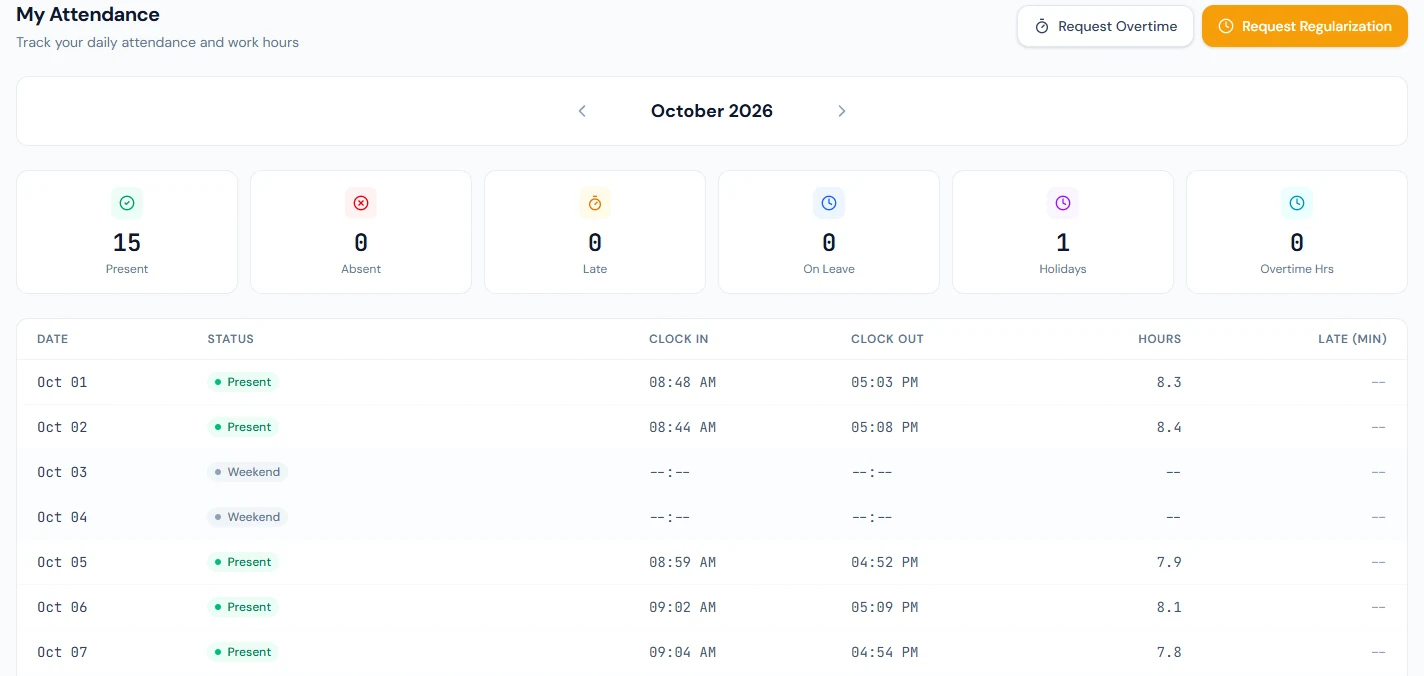
Request Regularization asks for the date, the Requested Status (and times, where the status needs them) and a reason; it goes to the reporting manager, or to HR where there is none (Chapter 39), and the day changes when it is approved. Request Overtime asks for the date, the Hours worked beyond the shift in quarter hours, and an optional reason (Chapter 39). Where the workspace banks overtime instead of paying it (Chapter 36), a Comp-off days tile beside the month's overtime hours is the Compensatory Off balance those approvals have built.
Where the workplace has a kiosk tablet at the door (Chapter 40A), the PIN typed there is set under My Account › Sign-in & Security › Kiosk PIN; the tablet shows nothing of the person's record, only their name and Clocked in at or Clocked out at with the time.
86.2 GPS clock-in
For someone assigned to an attendance site, My Attendance shows Location Clock-In with Clock In and Clock Out and today's punches. The browser asks for the location; a punch outside the site's radius is refused, and every attempt is logged for HR (Chapter 41). The messages say what went wrong on the phone's side: location access denied, location unavailable, too slow to find ("Move to open sky and try again"), or "You are not assigned to any attendance location". Location clock-in needs the plan's geo-attendance feature and Enable Geo Attendance switched on in Attendance Settings (Chapter 41). It does not appear for someone whose shift is set not to require punches.

86.3 Field visits
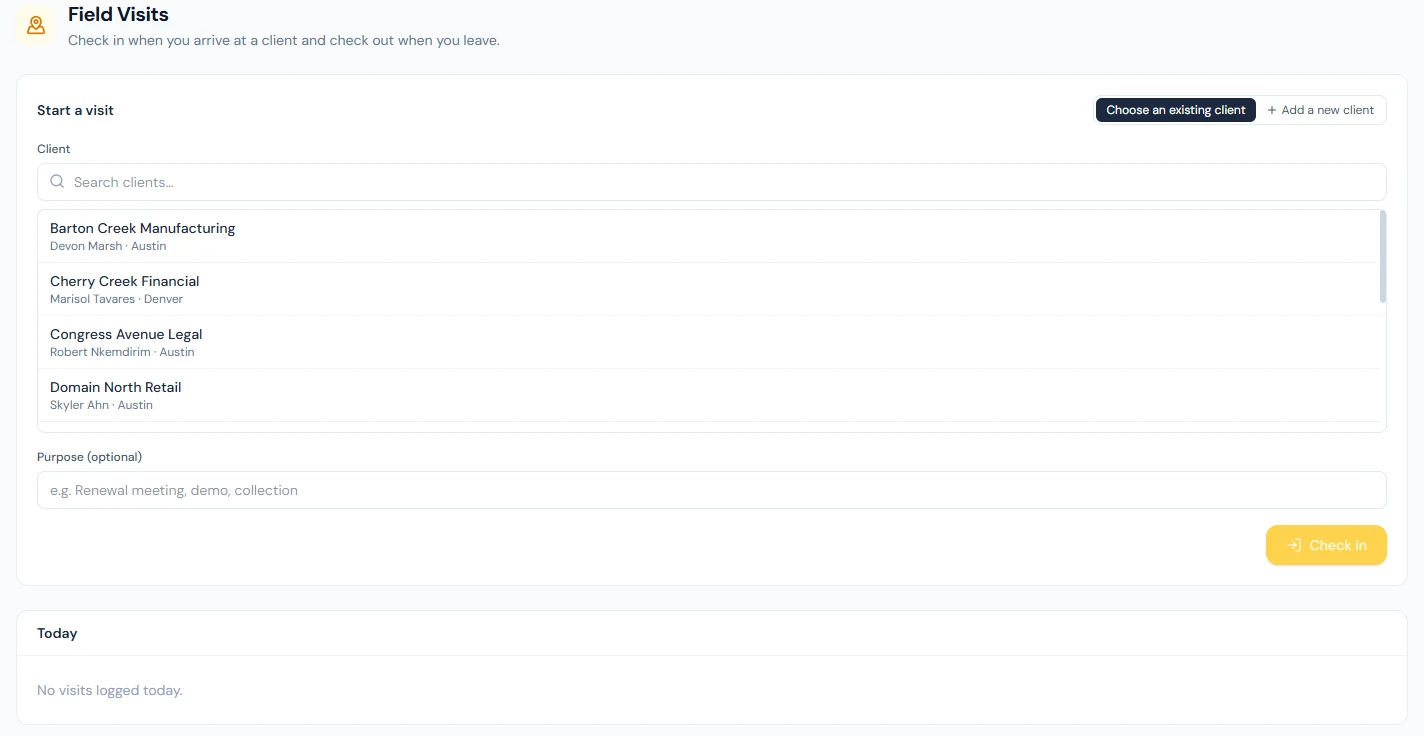
Staff enrolled in field visits see Field Visits under Time. They start a visit by picking or quick-adding a client, with an optional purpose, and Check in; while it is open they can add a photo, where the workspace has photo capture on; they end it with an outcome and notes; and can edit the purpose, outcome and notes for seven days. One visit is open at a time, and each is judged against the client's location (Chapter 42).
86.4 Leave balances, policies, applying, cancelling
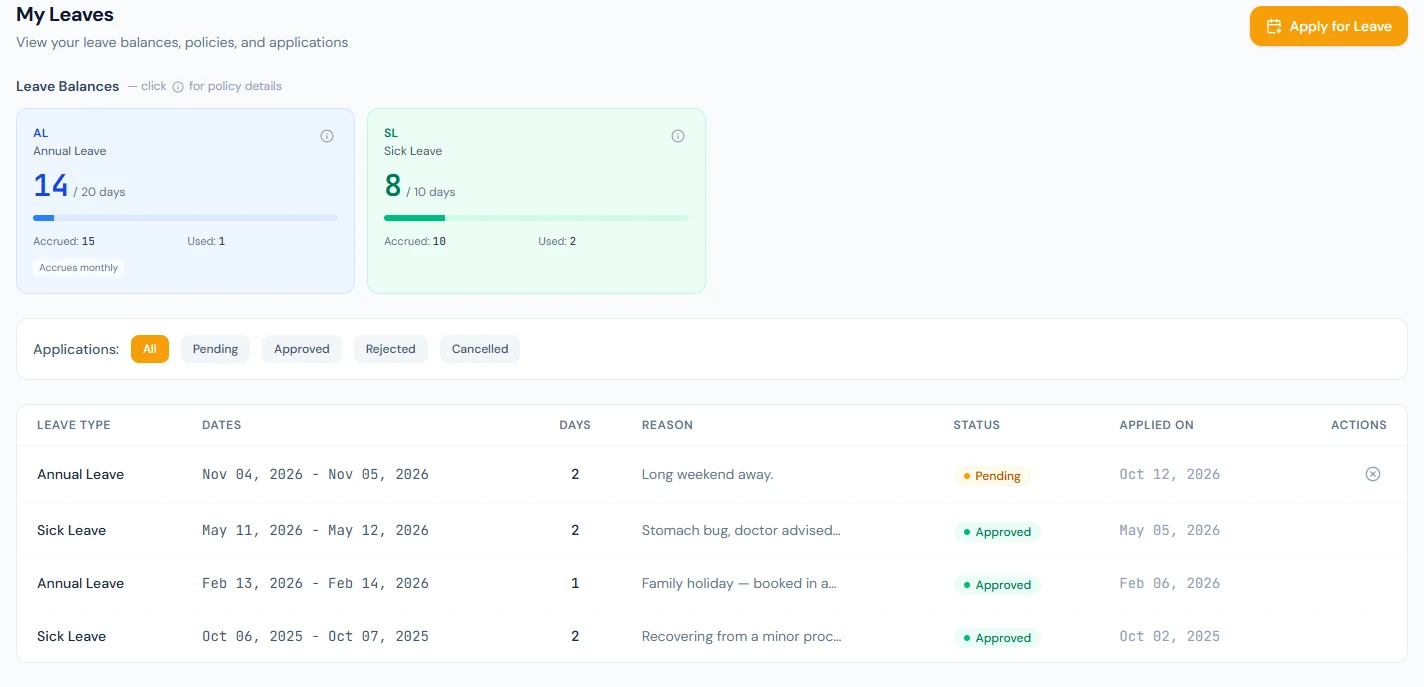
My Leaves, "View your leave balances, policies, and applications", shows a card per leave type with the days available out of the total, and what was Accrued and Used, with Carried and Encashed when there are any ("Accrues monthly" for an accruing type). The ⓘ on the card (View policy) opens the type's rules: the annual quota, how it accrues (monthly, or upfront at the start of the fiscal year), and who is eligible. Below, the person's applications with the leave type, dates, days, date applied and status; a pending one, or an approved one that has not started, can be cancelled, and its days return to the balance.
Apply Leave asks for the Leave Type, each shown with how it is approved: "(Balance: 12 — manager approval)", "(Unpaid — manager approval)", "(On request — HR approval)", or why the person is not eligible. Then Half Day Leave (first or second half), the From Date and To Date, a Reason, and an optional Attachment (PDF, JPG or PNG up to 5 MB, a medical certificate for example). The Application Summary shows the working days counted and the balance left; "Insufficient balance" warns before submitting. Submit Application sends it for approval (Chapter 48). A type taken in hours asks for the date and the hours instead; a yellow panel above the form lists the blackout periods ahead; and Request allocation on My Leaves asks for days the employee was not allocated (Chapter 47).
86.5 Holidays
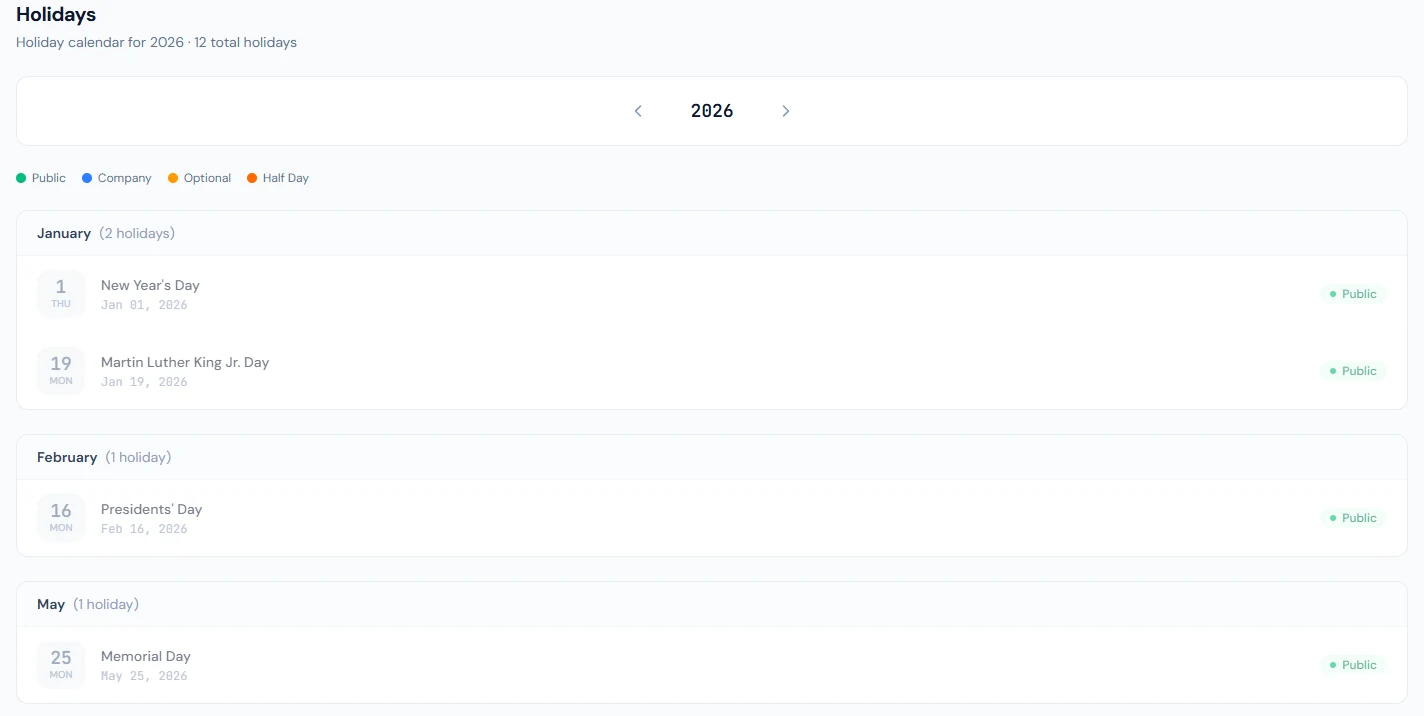
Holidays shows the year's holidays with their dates and count, the calendar HR set up (Chapter 43). A holiday is not a working day: it needs no attendance and no leave.
86.6 My Schedule, swaps and drops
On a workspace that rosters its people (Chapter 35), My Schedule shows two weeks of day cards: the shift's name and hours, the hours it counts for, the branch timezone at the top right, and Day off where the roster gave one. A solid card is published and final; a dashed card marked Provisional is the rotation's guess and can still change. A planner's note shows under a published shift, and a moon on the hours means the shift ends the next day. The dashboard's Next Shift card is the first published working day from today.
Every published future working day carries Swap and Drop. Swap offers the day to a colleague chosen by name, with an optional day of theirs to take in return; Drop gives it up for anyone with that day off. The colleague sees the offer under For you and accepts or declines; an accepted request goes to the manager, and My requests follows it from Waiting for colleague through Awaiting approval to Approved or Rejected. Until approval the original shift stands, and Cancel request withdraws it. A day with an open request reads Request pending.
My Account › Calendar offers a My shifts link that puts the published shifts into Google, Outlook or Apple Calendar at their real times (Chapter 85).
What happens next
- Chapter 87 covers the Money group: salary, tax, loans and expenses.
What the employee sees
This chapter is what the employee sees.
Common mistakes
- Fixing a missed punch by editing attendance as HR. Let the employee request a regularisation, so the record says why.
- Overtime without a request. Requested and approved overtime is the record; nothing else counts.
- Location clock-in on plain HTTP or with location blocked. The browser refuses; use the workspace's secure address.
- Applying for leave that the policy does not allow. The type shows why; read it before asking HR.
- Cancelling an approved leave by message. Until it starts, the employee can cancel it in the portal, so the balance returns.
- Treating a provisional day as final. A dashed card is the rotation's guess; the planner publishes the week, and only then is the day owed.
- Swapping by text message. Until the swap is accepted and approved in the portal, attendance expects the original person.
Practice
Use your own trial workspace, not a customer's.
- As a test employee, request a regularisation for a missing clock-out; approve it as the manager and read the day again.
- Open View policy on two leave types and compare their accrual.
- Apply for a half day, read the summary, and cancel it.
- On a rostered workspace, offer next week's shift to a colleague as a swap, accept it as the colleague, and read it in the manager's Approvals inbox.
Quiz
1. What does "Missing Clock-out" mean, and what is the fix?
A day with an in-punch and no out-punch; the employee requests a regularisation with the correct out-time.
2. Who sees Location Clock-In?
People assigned to an attendance site, where the plan includes geo attendance.
3. What does each leave balance card show?
The days available of the total, and what was accrued, used, carried and encashed.
4. How does Apply Leave show who approves?
Each leave type says it: manager approval for balance and unpaid types, HR approval for on-request types.
5. Which leave applications can the employee cancel?
Pending ones, and approved ones that have not started yet.
6. What does a dashed, "Provisional" day on My Schedule mean?
The shift the rotation pattern expects, not yet published by the planner. It can change, and it cannot be swapped until it is published.