Chapter 84 — Portal tour and dashboard
Most of what HR sets up reaches employees through the portal: their payslips, leave, contract, letters, tasks and announcements. HR answers questions about it every day ("where do I find my tax certificate?", "why can't I see Team Expenses?"), so HR needs to know it as employees see it. Part 14 walks the portal menu by menu; this chapter is the map and the home page.
What this chapter covers
- 84.1 Sidebar groups; why some items are hidden
- 84.2 Dashboard: alerts, stat cards, journey cards, badges, upcoming interviews, pending requests
- 84.3 The portal as an app: install, notifications, offline
- 84.4 Arranging Home: sections, a banner, quick links and celebrations
The concept
Self-service works when employees can find their own answers: their balance, their payslip, their document, the status of their request, without asking HR. A good portal shows each person only what applies to them, puts what needs action first, and makes the rest a click away. Every question HR does not have to answer is time back for work only HR can do.
How Operentra handles it
- The portal opens at sign-in for employees; people with an admin role can open it too, for their own records.
- The menu has a Dashboard and five groups: Me, Time, Money, Work and Company.
- Items appear only when they apply: by the workspace's plan, by the country, by the person's role, and by their circumstances.
- The dashboard puts actions first (one list of what is waiting on the person), then the person's figures for the month, their journey with the company, badges, requests, holidays, announcements and interviews.
- The workspace arranges it: which sections are on, their order, a banner, quick links, and the celebrations and new joiners cards.
- Who: every employee with a login linked to their employee record.
Walkthrough
The examples are Imani Castellanos's portal (NWL-0007), a Senior Software Engineer at Northwind with no direct reports.
84.1 Sidebar groups; why some items are hidden
| Group | Items |
|---|---|
| Me | My Profile, Assistant, Letters, Contracts and agreements, My ID Card, My Email Signature, My Business Card |
| Time | My Attendance, Field Visits, My Leaves, Apply Leave, Holidays |
| Money | My Salary, Tax Certificates, My Loans, My Expenses, Team Expenses |
| Work | My Tasks, Daily Report, Sales Report, My Performance, My Appraisals, Reviews |
| Company | Announcements, My Assets, My Interviews |
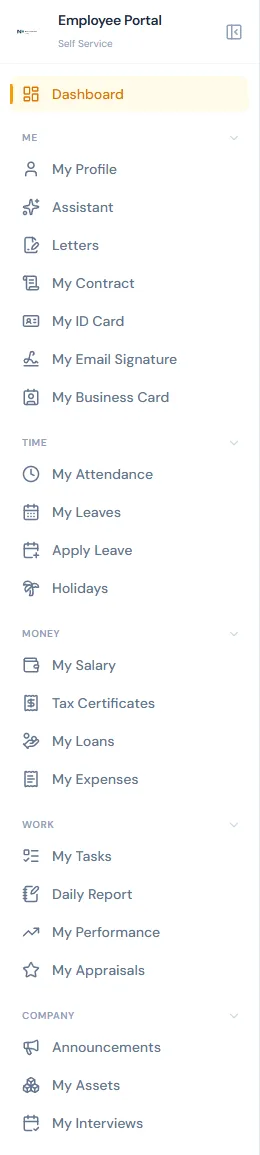
An item is hidden when it does not apply:
- Plan: items of a feature the workspace's plan does not include (payroll, performance, geo attendance) disappear; employees cannot upgrade, so they are hidden rather than locked. My ID Card, My Email Signature and My Business Card appear once the workspace has unlocked Brand Studio (Chapter 81). Assistant is on every paid plan (Chapter 98).
- Country: Tax Certificates appears only where the country levies income tax through payroll (Chapter 63).
- Role: Team Expenses and Reviews need a role that approves
team claims or reviews appraisals; Letters and My Appraisals
need a role that can see them; Assistant needs
assistant.use, which every default role holds. Someone whose employee record has the assistant switched off still sees Assistant, but the page tells them it is not switched on for them, and they have no Assistant button. - Circumstances: Field Visits appears for staff enrolled in field visits (Chapter 42); Sales Report for staff in a sales department (Chapter 73).
So when an employee cannot find an item, check in that order: the plan, the country, their role, and their enrolment.
Above every page is one search box. It looks in four places at once: colleagues (Chapter 9A), knowledge base articles (Chapter 81B), company documents and news (Chapter 89), and opens the results under the box as the person types, each with the passage where the words were found. A company document is found by what is written inside its file, so "notice period" finds the handbook without anyone knowing it is in the handbook. / or Ctrl+K puts the cursor in the box; the arrow keys and Enter open a result; See all results opens the page that lists every group.
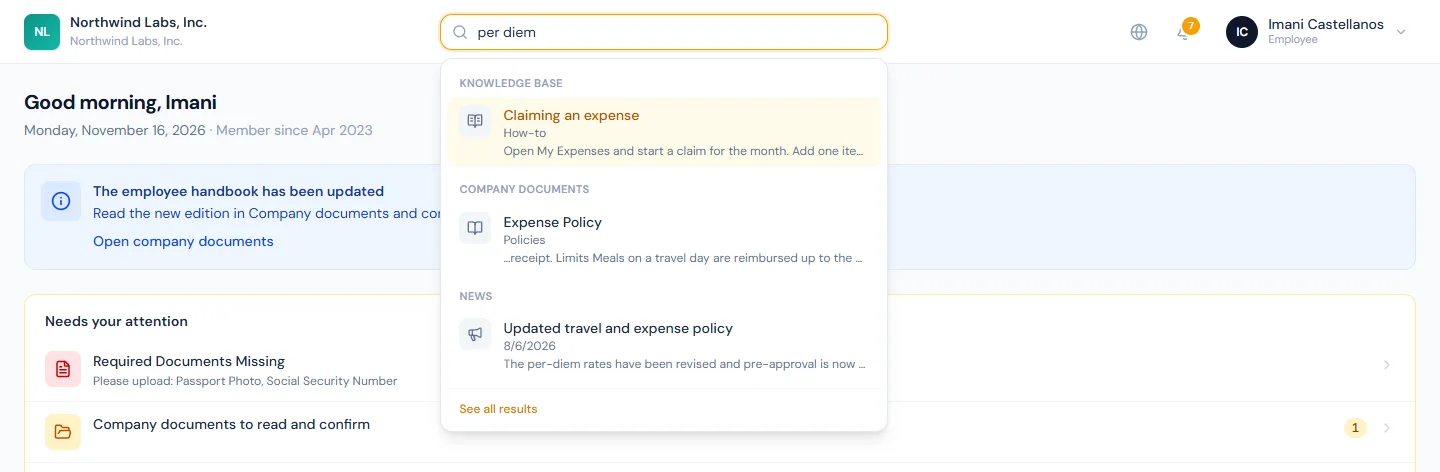
The box adds no way of seeing anything. Each group is the answer its own page would give this person: only the articles and documents aimed at them, only the news they can read, only the directory fields the workspace shows, and no people at all where the directory is switched off. Someone who finds nothing has either no document that says it, or a document that says it in a scan.
84.2 Dashboard: alerts, stat cards, journey cards, badges, upcoming interviews, pending requests
The dashboard opens with a greeting and, when something needs doing, a Needs your attention list. Three of its lines were separate banners in earlier releases: Employment Agreement Pending ("Your employment agreement requires your signature…", Chapter 18), Address Verification Required with the days remaining (Chapter 23), and Required Documents Missing with the list (Chapter 22). The list also counts what else is waiting: company documents and knowledge base articles to read and confirm (Chapter 81B), surveys to answer (Chapter 81A), checklist tasks assigned to the person, and requests waiting for their decision. Each line opens the page that clears it, and the list is not shown when nothing is waiting. These are the first things to clear. A must-read announcement (Chapter 78) is not on the list: it stops the person before they reach the dashboard.
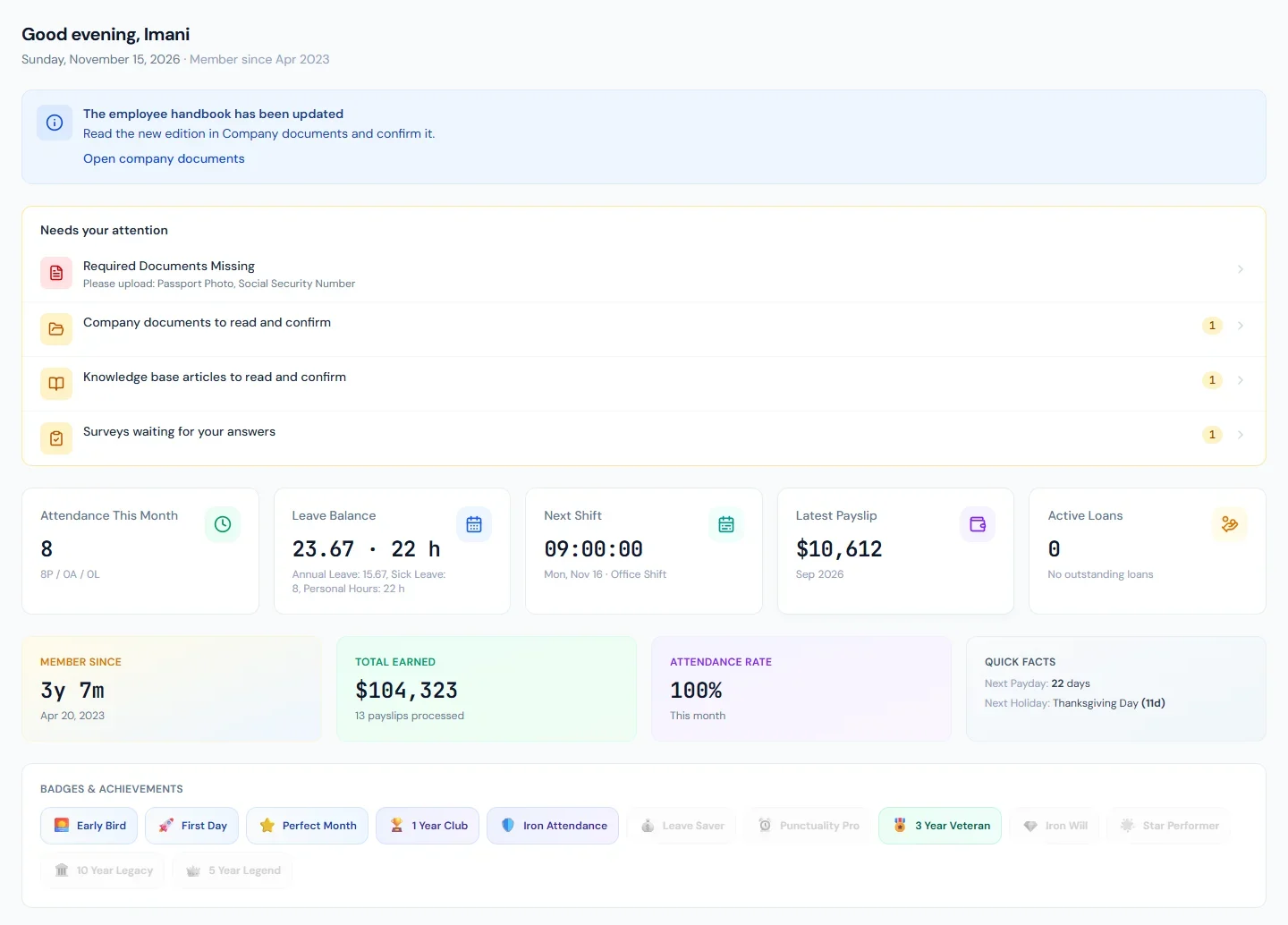
Four stat cards follow: Attendance This Month (present, absent and late days), Leave Balance (the days available across the leave types, counted as My Leaves counts them: what has accrued so far, not the year's whole allocation; a type measured in hours (Chapter 45) is totalled on its own and shown beside the days with an "h"), Latest Payslip (or "Not processed"), and Active Loans with the outstanding amount. The journey cards show Member Since with the tenure, Total Earned over the payslips processed, the Attendance Rate this month, and Quick Facts: the next payday, the next holiday and the next work anniversary.
Below them: Badges & Achievements (Chapter 70), each with what it was earned for or "Not yet earned"; Pending Requests, the person's leave requests, regularisations and loan requests still awaiting a decision, with Apply for Leave; Upcoming Holidays; Recent Announcements, the five newest meant for them (Chapter 78); and, for interview panel members, Upcoming Interviews (Chapter 29).
84.3 The portal as an app: install, notifications, offline
The portal installs on a phone or a computer. A yellow bar under the
top bar offers Install where the browser allows it (Android,
desktop Chrome and Edge); on iOS Safari it gives the steps, Share then
Add to Home Screen, because Safari has no install button. The icon
opens the portal full-screen at /portal. Dismissing the bar keeps it
away on that device. On the shared address the icon and the name are
the product's; on a workspace's own domain (Chapter 13)
the installed app carries the workspace's app name, and its favicon as
the icon when that is a square image of at least 192 pixels.
After a release the portal shows A new version is ready with a Reload button. Nothing changes under an employee who is part-way through a form until they press it; left alone, the new version takes over the next time the app is opened.
Notifications on this device, at the top of the notifications page, turns on push for that device: a notification that reaches the bell also reaches the phone, with the app closed too, and tapping it opens the page it is about. It is per device and per workspace; the workspace's category switches (Chapter 12) govern the push as they govern the bell. The card is absent where the browser cannot push or the platform has no push keys. Signing out, or switching to another workspace, turns it off on that device, so a shared phone never shows one person's notifications to the next.
Offline, the four pages an employee opens on a phone (My Schedule, My Salary, My Leaves, My Attendance) show the last answers they fetched. Those answers are kept on the device for that person and that workspace only, for up to seven days, and are removed at sign-out. Where the workspace has switched on Accept offline punches (Chapter 36), a GPS clock-in made with no signal is saved on the device, with the time and the position measured then, and sent when the network is back; it is recorded at the time pressed and marked Offline replay in attendance. The same checks apply as to a live punch. A saved punch that waited more than two days, or is earlier than a punch already recorded for that day, is refused and logged as a rejected attempt. With the setting off, which is how every workspace starts, nothing is saved and a punch with no signal simply fails.
84.4 Arranging Home: sections, a banner, quick links and celebrations
Settings → Portal Home (needs company.settings) arranges the
dashboard for the whole workspace. Until someone changes it, the page
shows what this chapter has described, in the same order.
Sections. Every part of the dashboard is a section with a switch and two arrows. The arrows set the order; the switch turns a section off, and a section that is off sends nothing to the portal. Needs your attention has no switch: it carries what people have to act on.
Banner. One notice for everyone, in plain text, with a style (Information, Good news, Important), an optional link, and optional Show from and Show until times. It records nothing: for a notice people must confirm, use a must-read announcement (Chapter 78).
Quick links. Up to 24 links to tools, forms and shared folders,
each with an icon and an audience: everyone, or chosen departments,
branches, roles or named people. A person sees only the links aimed at
them. A link's address is a web address starting with https:// or a
page inside the app; anything else is refused.
Celebrations and New joiners. Both are off in a new workspace, because they put people's dates in front of their colleagues. Celebrations lists birthdays and work anniversaries from today through the next six days. A birthday is a day and a month: the year of birth never reaches the portal. Each person can take themselves out with Leave me out on the card. New joiners lists the people who joined in the last 30 days. Where the people directory is open (Chapter 9A), a name opens that person's card.
What happens next
- Chapter 85 opens the Me group: profile, documents, contract and letters.
What the employee sees
This chapter is what the employee sees.
Common mistakes
- Telling an employee to look for an item their role does not show. Check the four reasons above first.
- Ignoring the Needs your attention list. It is the dashboard's action list.
- Expecting the admin panel's names in the portal. The portal uses its own (My Salary, not Payroll).
- Assuming a missing figure is a fault. "Not processed" means the month's payroll has not run yet.
- Using the banner for something people must confirm. The banner records nothing; a must-read announcement records who confirmed.
- Switching Celebrations on without telling people. Say that birthdays will show, as a day and a month, and that anyone can leave themselves out.
Practice
Use your own trial workspace, not a customer's.
- Sign in to the portal as a test employee and list the items in each group.
- Give the same person a role that approves team claims, sign in again, and find Team Expenses.
- Read each dashboard card and say where its figure comes from.
Quiz
1. Name the five menu groups.
Me, Time, Money, Work and Company.
2. Give four reasons an item can be hidden.
The plan, the country, the person's role, and their circumstances (field-visit enrolment, a sales department).
3. What can appear on the Needs your attention list?
Employment Agreement Pending, Address Verification Required and Required Documents Missing; and counts of company documents and knowledge base articles to confirm, surveys to answer, checklist tasks and requests waiting for the person's decision.
4. An employee searches the portal for a colleague's salary letter and finds nothing. Is the search broken?
No. The search box shows only what the person could already open from the pages themselves: articles and documents aimed at them, news they can read, and the directory as the workspace shows it. It is a faster way to what they may see, never a way to more.
4. What do the four stat cards show?
Attendance this month, leave balance, the latest payslip and active loans.
5. Which announcements appear on the dashboard?
The five newest live announcements meant for the person.
6. How does an employee get the portal on an iPhone, and what does it do offline?
Share, then Add to Home Screen in Safari, since Safari has no install button. Offline it shows the last answers for My Schedule, My Salary, My Leaves and My Attendance, and, where the workspace accepts offline punches, saves a GPS clock-in to send when the network returns.
7. When is a saved offline punch refused?
When the workspace does not accept offline punches, when it waited more than two days, when it is earlier than a punch already recorded for that day, or when any live-punch check fails (not at the site, an exempt shift, a finalised day); it is logged as a rejected attempt in every case.
8. A workspace switches Celebrations on. What do colleagues see of a birthday, and what can each person do?
The day and the month, never the year, for birthdays from today through the next six days. Each person can take themselves out with Leave me out on the card, which also hides their work anniversary.
9. Who sees a quick link, and what addresses can it have?
The audience it was given: everyone, or chosen departments, branches, roles or named people. Its address is a web address starting with https:// or a page inside the app.