Chapter 90 — Managers in Operentra
HR runs the system; managers make most of its daily decisions. A leave request, a forgotten punch, an expense claim, a performance review: each lands first with the person's manager, who knows whether it is right. This chapter is what a manager does in Operentra, so HR can set managers up properly and help them when they are stuck.
What this chapter covers
- 90.1 What a department head can do in the admin panel
- 90.2 Approving leave, overtime and regularisations
- 90.3 Team expenses, reviews, interviews
- 90.4 The Approvals inbox and out-of-office delegation
The concept
Good delegation gives managers the decisions they are best placed to make, about their own team, and no more: they approve their people's leave and corrections, judge their work and their claims, and see their team's attendance, without seeing the whole company's salaries. Two things make it work: a correct reporting line for every employee, and a manager role that matches it.
How Operentra handles it
- Reporting manager on each employee record (Chapter 19) decides whose requests a manager sees.
- The Department Head role (Chapter 14) gives a manager the approvals and team views; its scope is direct reports only.
- In the admin panel, a Department Head sees only the pages their permissions open: a team dashboard, their team's attendance, roster and leave, the approvals, tasks and their own reporting line on the org chart, and, for the whole company, skills, assets, onboarding and holidays (90.1).
- In the portal, they also get Team Expenses and Reviews, Team Timesheets where the workspace uses timesheets, and My Interviews when on an interview panel.
- The AI assistant (Chapter 98) can list the leave waiting for a manager and prepare an approval or rejection of a leave application, a regularisation, an overtime claim or a team expense claim as a card the manager confirms. It acts with the manager's own access, so the direct-reports rule holds exactly as on the pages.
- A manager on the plain Employee role gets none of these pages, however many people report to them, and the default approval flows pass them over: every default step asks for a permission that role does not hold. Some things still reach them, because they follow the reporting line and not the role. A checklist task that an activity plan gives to the manager is on their Checklist Tasks page (32A.4), and a custom flow whose manager step names no required permission sends them the request, to decide on a card in Approvals (14A.5).
Walkthrough
Northwind has eighteen reporting managers, and most are on the plain Employee role, so the team pages do not appear for them. The example is Rafferty Considine (NWL-0020), who leads two people in Design, Thandiwe Mokoena and Lucian Petrosyan, and has the Department Head role alongside Employee (Users › Edit, Chapter 14).
90.1 What a department head can do in the admin panel
A Department Head signs in to the admin panel; Employee Portal in the account menu opens their own portal. Their Dashboard is the team's: Your team today (direct reports at work, late, on leave and absent) and Waiting for your decision (pending leave, attendance corrections, overtime and team expense claims, each linking to its page). If nobody reports to them yet, it says so. The menu shows only what the role opens:
| Area | Pages | Whose |
|---|---|---|
| Assistant | Chat | Their own access |
| Employees | Org Chart | Their own reporting line |
| Employees | Skills | The whole company, to read |
| Attendance | Daily Attendance, Regularizations, Overtime Requests, Roster | Direct reports |
| Leave Management | Applications, Pending Approvals, Leave Calendar, Allocation Requests | Direct reports |
| Holidays | Holiday Calendar | The whole company |
| Assets | All Assets, Categories | The whole company |
| Onboarding | Pipelines, Plans | The whole company, to read |
| Performance | Tasks | Direct reports |
| Reports | Skills Reports | The whole company |
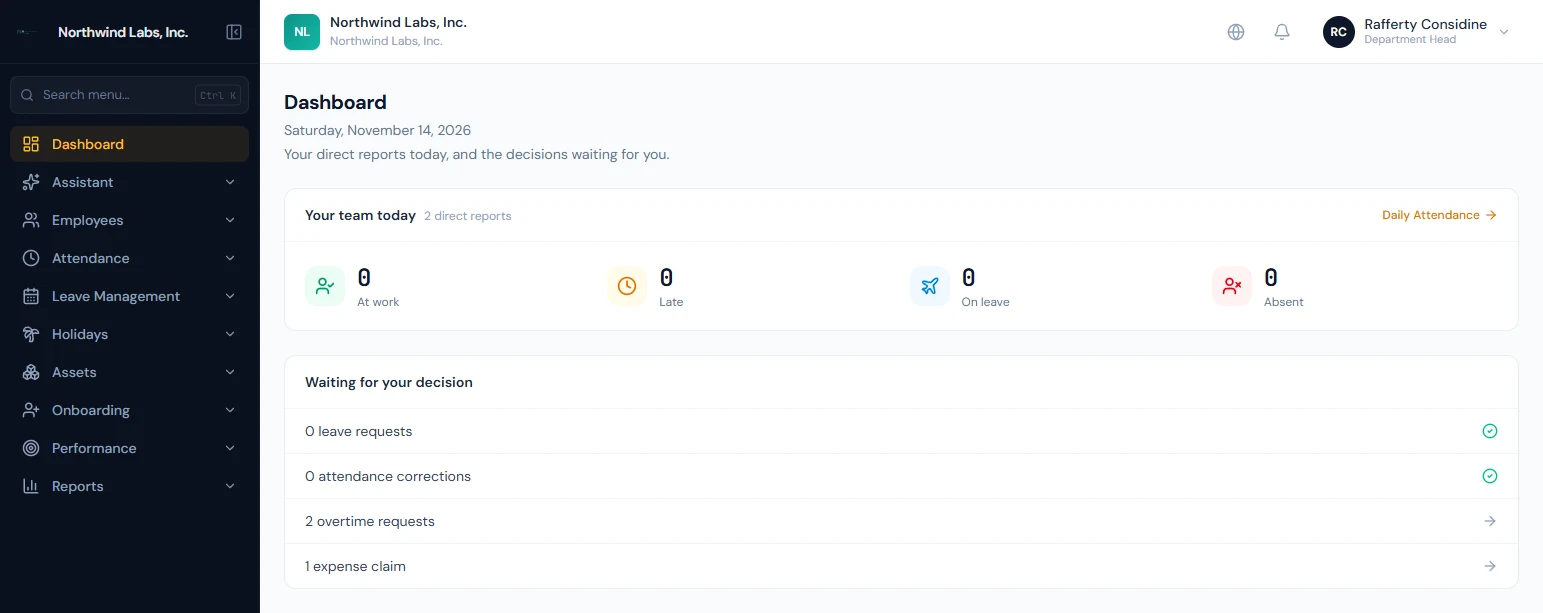
Attendance, the roster, leave, tasks and every approval are limited to the manager's direct reports: someone in another team is simply not there, and opening their record by link answers "not found". They cannot see salaries or payroll, the employee directory, or settings. For anything wider, the person needs an HR role.
Five of these entries came with newer modules:
- Roster shows the direct reports' shifts, to read. Building a
week needs
roster.manageand publishing itroster.publish, which the role does not hold (Chapter 35A). - Allocation Requests lists the direct reports' requests for more leave days, which the manager decides first (47.6).
- Skills and Skills Reports read everyone's skills and the
matrix:
skills.viewis not limited to a team. Recording a skill or deciding a proposal needsskills.manage(Chapter 24A). - Plans shows the activity plans without letting them be changed (Chapter 32A).
Roster, Skills and Skills Reports show a lock in a workspace that does not have the module, and lead to a page that says so.
Employees › Org Chart is in their menu because the role holds
employees.view_team. It draws the manager's own reporting line:
their card and everyone below it, at any depth, so a report's own
reports are there too. The page says so under its title. Nobody
outside that line is drawn, whatever department or focus is chosen,
and the names are plain text, since opening a profile needs
employees.view_all
(9A.5).
90.2 Approving leave, overtime and regularisations
Daily Attendance shows the team's day, or one person's month when the manager picks them (Chapter 37). Leave › Leave Applications and the Leave Calendar show the team's leave, so the manager can see who is off before approving more (Chapter 48).
Leave › Pending Approvals lists the direct reports' leave applications awaiting the manager, with the type, dates, days and reason; Approve or Reject with a reason (Chapter 48). Leave types marked "On request — HR approval" go to HR instead.

Attendance › Regularizations lists their correction requests (a missing clock-out, a wrong status) with the requested change and reason; approving it changes the day (Chapter 39). Overtime Requests lists their claimed overtime hours; approved overtime is the record the overtime reports and settings use (Chapter 39).
The employee is notified of each decision. HR, who approve for the whole company, see every request too, so they can decide when the manager is away or for someone with no manager.
90.3 Team expenses, reviews, interviews
In the portal, Team Expenses shows the direct reports' submitted expense claims: View items, Approve (to HR for final approval) or Reject with a reason (Chapter 66).

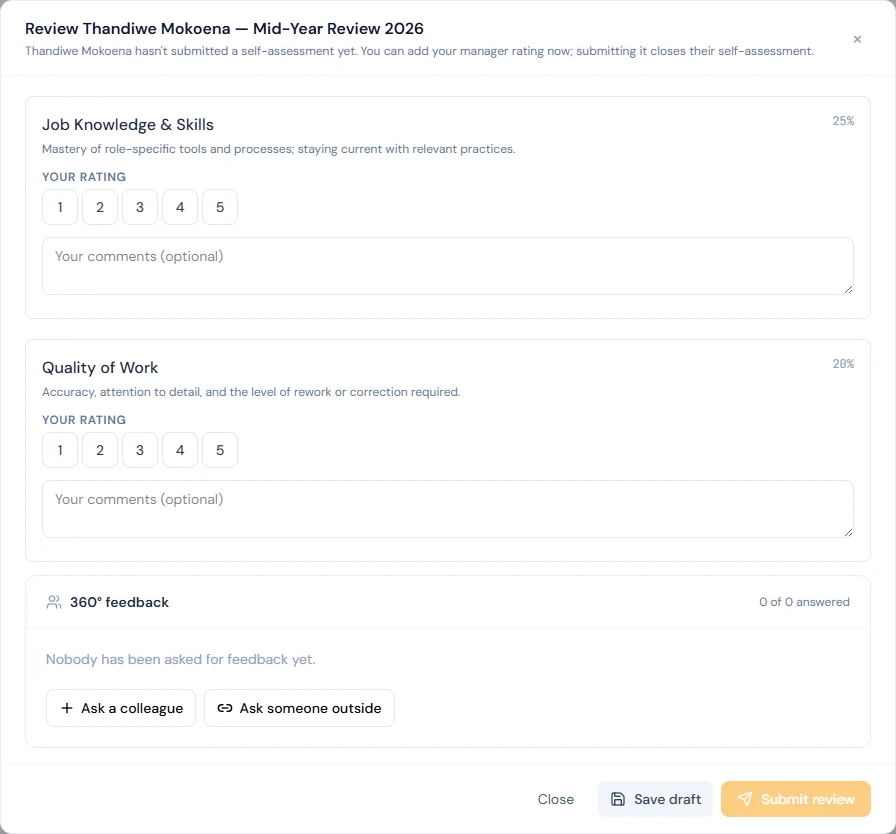
Reviews shows the appraisals they review, to rate each competency and submit (Chapter 69). The review window shows the employee's self-assessment once it is submitted. Before that, it says the self-assessment isn't in yet: the manager can still rate, and submitting the review closes the employee's self-assessment.
In the admin panel, Tasks lets them set, confirm and grade their team's tasks (Chapter 71). As a member of an interview panel, My Interviews shows their rounds and takes their feedback (Chapter 89).
90.4 The Approvals inbox and delegation
Approvals in the portal's Work group gathers everything waiting on the manager across modules: each card shows who asked, what for, when, and the step the request is at out of how many — the chain set under Settings › Approval flows (Chapter 12). Approve and Reject (with a reason) decide the request there, with exactly the effects the module's own page would have. My requests shows the manager's own requests of every kind with every decision taken on them. The entry is in everyone's portal menu, whatever their role (14A.5).
Open is on a card only when the approver has a module page that lists that request and lets them decide it. For a Department Head:
| Request | Open leads to |
|---|---|
| A direct report's leave application | Leave › Pending Approvals |
| A direct report's leave allocation request | Leave › Allocation Requests |
| A direct report's expense claim | Team Expenses |
| A direct report's timesheet | Team Timesheets |
| A shift swap | No Open: the roster's Swaps & drops tab needs roster.publish, which the role does not hold |
A card with no Open is decided on the card. That is also the case
for a request from someone who is not a direct report, which a step
can still send to the manager, as a time-off officer or a named
person. An HR role is led further: expenses.view_all opens the
claim's own page, timesheets.manage the admin Timesheets page, and
leave.view_all beside leave.approve the leave pages for anyone's
request, not only a direct report's.
Before a holiday the manager opens Delegations and hands their approvals to a colleague for the dates. Request types offers Leave, Expense, Shift swap, Leave allocation and Timesheet; with none ticked the delegation covers every kind. The colleague sees the requests in their own inbox marked on behalf of and their decisions are recorded that way; the delegation can be ended early. The tab appears for roles holding Delegate Approvals (out of office), and delegating needs the Custom approval flows plan feature.
What happens next
- Part 15 turns to reports, audit and data.
What the employee sees
Their manager's decisions, by email and in the portal, on their requests, claims, tasks and appraisals.
Common mistakes
- Managers on the Employee role. Under the default flows their Approvals inbox stays empty and their team's requests fall to HR; give them a manager role.
- Wrong reporting lines. A request goes to whoever the record says is the manager; keep the org chart current.
- Giving managers an HR role "to make it work". They then see everyone's data and salaries.
- No cover for absent managers. Requests wait; HR approves them, or reassigns the reporting line for the period.
- Expecting team reports. Apart from Skills Reports, the Reports section needs an HR role; a manager's view of the team is the dashboard, Daily Attendance and the leave pages.
Practice
Use your own trial workspace, not a customer's.
- Give a test manager the Department Head role and sign in as them; compare their dashboard and menu with an HR Manager's.
- As one of their direct reports, apply for leave and request a regularisation; approve both as the manager.
- Submit an expense claim as the report and approve it from Team Expenses.
Quiz
1. What decides whose requests a manager sees?
The reporting manager on each employee record; the scope is direct reports only.
2. Why might a manager's Approvals inbox stay empty?
They are on the Employee role. The default flows send a request only to someone holding the module's approving permission, so a manager needs a role such as Department Head.
3. Which leave requests go to HR rather than the manager?
Leave types approved by HR ("On request — HR approval"), and requests from people with no manager.
4. Which admin pages show a Department Head the whole company?
Assets, onboarding pipelines and plans, holidays, and Skills with its report. Attendance, the roster, leave, tasks and approvals show only their direct reports, and they see no salaries or payroll beyond their own.
5. A manager is away for two weeks. How do their direct reports' requests get decided?
The manager delegates their approvals to a colleague for the dates from the Approvals inbox's Delegations tab; the colleague decides on their behalf. Failing that, HR, who approve company-wide, decide from their own inbox; and a flow step with an escalation set moves on by itself when its waiting time runs out.
6. Where does a manager approve team expense claims?
In the portal, under Team Expenses.