Chapter 69 — Running an appraisal cycle
A review cycle is a small project with a deadline and fifty participants. Each employee writes about their own period, each manager rates their people, HR reads the results side by side and signs them off, and everyone gets a record they can keep. The work is in the follow-up: the employee who has not started, the manager who left in the middle, the rating that does not match the comments.
What this chapter covers
- 69.1 Creating a cycle and rolling it out
- 69.2 Employee self review
- 69.3 Manager review in the portal
- 69.4 HR finalisation: rating, increment, promotion
- 69.5 Closing a cycle; appraisal PDF
- 69.6 Automatic probation review cycles
- 69.7 Appraisal emails
The concept
A cycle runs in three passes. The self-review comes first, so the employee's view is on record before anyone else's. The manager's review is the official rating, written with the self-review in front of them. HR's finalization checks the result against the rest of the organisation, adds the decision (an increment, a promotion), and closes the record. Each pass needs a deadline and a chaser, and the record that comes out of it needs to say who rated what, on which form, with what result.
How Operentra handles it
- Appraisals › Cycles holds the cycles. A cycle has a name, a cadence, a period, a template and optional due dates for the self-review and the manager review.
- Roll out to all active employees creates one appraisal for each, with their reporting manager as the reviewer, and emails each to start their self-review. Rolling out again adds only people who have none.
- Each appraisal moves through Pending, Self Review (Draft), Awaiting Manager, Manager Review (Draft), Awaiting Finalization and Finalized.
- Employees write their self-review under My Appraisals; reviewers rate under Reviews, both in the portal.
- HR finalizes from the appraisal page: the final rating is the weighted average of the reviewer's ratings; HR adds comments, a recommended increment and a promotion recommendation.
- Close cycle locks a cycle for good; finalized appraisals have a PDF for HR and the employee.
- Automatic probation reviews are created thirty days before a probation ends.
- Who:
appraisals.managefor cycles and finalization (Super Admin, HR Manager);appraisals.reviewfor the Reviews page (Super Admin, HR Manager, Department Head);appraisals.view_ownfor My Appraisals (every default role).
Walkthrough
Northwind's Annual Review 2025 covered 2025 and is closed. Its Mid-Year Review 2026 covers January to June 2026, on the General Staff template, with the self-review due 10 July and the manager review due 24 July; all forty-five appraisals are in it, at every stage.
69.1 Creating a cycle and rolling it out
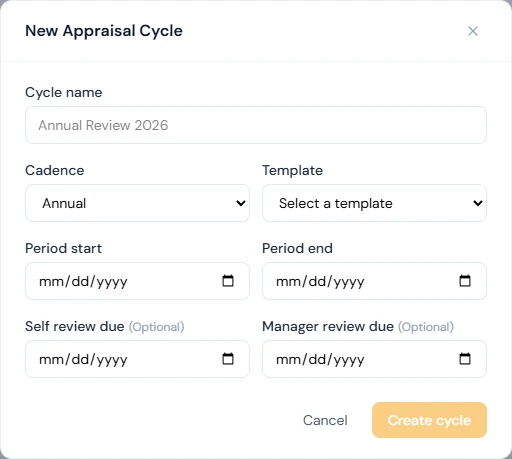
Appraisals › Cycles › New Cycle asks for the Cycle name ("Annual Review 2026"), the Cadence (pre-selected from the settings), the Template (active templates only), the Period start and Period end, and optionally Self review due and Manager review due. Create cycle saves it as a Draft; nobody sees it yet.

On the cycle's page, Roll out to all active employees creates an appraisal for every employee whose status is Active, with their reporting manager at that moment as the reviewer, sets the cycle Active, and emails each employee to start their self-review. The result reads "Rollout complete. Created 45 new appraisals, skipped 0 existing." Run it again after people join: only those without an appraisal are added and emailed. Activate only marks a Draft cycle Active without creating any appraisals; rolling out does both.
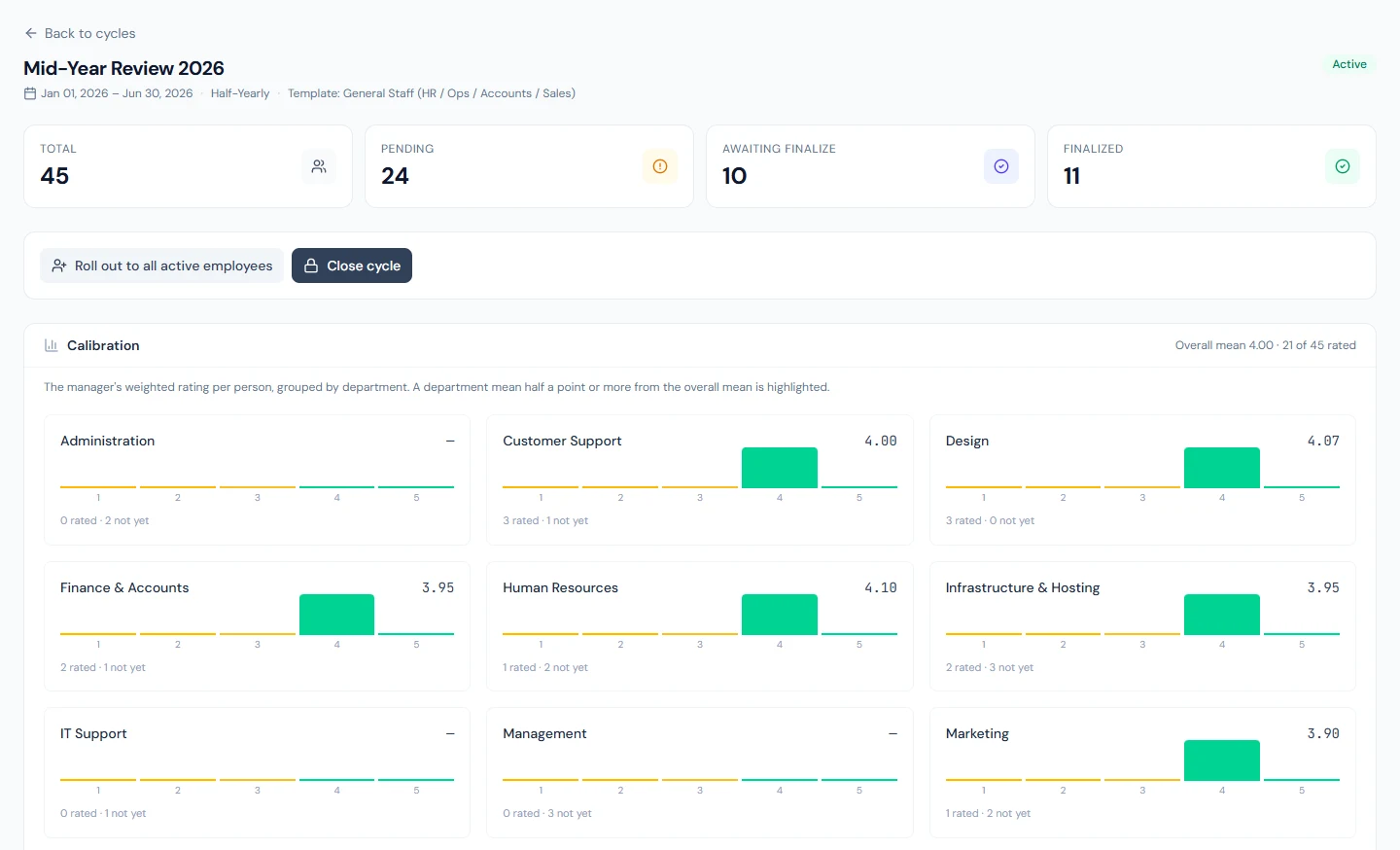
The page shows the template, four counts (Total, Pending for everything before the manager has submitted, Awaiting finalize and Finalized) and the appraisals with each reviewer, status and rating. The self-review due date is quoted in the rollout email; neither due date locks anything, and a late review can still be written while the cycle is open.
69.2 Employee self review
In the portal, My Appraisals lists each cycle with its period, status and final rating. Open self review shows the template's competencies with their descriptions and weights; for each, the employee picks a rating (the scale's label shows under it) and may add a comment. Save draft keeps the work (Self Review (Draft)); Submit to manager sends it on (Awaiting Manager) and is only possible once every competency is rated. A submitted self-review is final. Until HR finalizes the appraisal, the employee sees only their own ratings.
69.3 Manager review in the portal
The reviewer's Reviews page, "Appraisals assigned to you as the reporting manager", lists their people's appraisals in open cycles that are waiting for them. Open shows the employee's self-assessment, rating and comment, for each competency, then Your rating and Your comments; Save draft and Submit review work as for the employee, and Submit needs every competency rated. The reviewer can start before the self-review is in; submitting closes the self-review. Only the assigned reviewer can submit, and only people whose role can review appraisals see Reviews; a manager on the Employee role needs a role such as Department Head (Chapter 14).
When the reviewer is wrong or missing, HR changes it on the appraisal's page with Change reviewer. Marguerite Okonkwo (NWL-0001), Northwind's chief executive, has no reporting manager, so the Mid-Year appraisal shows "No reviewer: name one, or this appraisal cannot be finalized." Naming a reviewer, for instance the HR Manager, puts it in that person's Reviews. A reviewer who leaves mid-cycle is replaced the same way; a draft they started does not carry over.
69.4 HR finalisation: rating, increment, promotion
When the reviewer submits, the appraisal is Awaiting Finalization and HR is emailed. The appraisal page shows each competency with its weight and both ratings. Wilhelmina Okafor (NWL-0040), reviewed by Augustin Beaulieu:
| Competency | Weight | Self | Manager |
|---|---|---|---|
| Job Knowledge & Skills | 25 | 4 | 5 |
| Quality of Work | 20 | 5 | 3 |
| Productivity & Time Management | 20 | 3 | 4 |
| Communication | 15 | 4 | 5 |
| Reliability & Attendance | 10 | 5 | 3 |
| Teamwork | 10 | 3 | 4 |
Finalize asks for Final comments, an Increment type (Percentage or Amount) and Increment value, and Recommend promotion. Finalize appraisal computes the final rating as the weighted average of the reviewer's ratings: 5×25 + 3×20 + 4×20 + 5×15
- 3×10 + 4×10 = 410, over 100, 4.10. The self-review informs the conversation but not the number (it is used only where the manager review is switched off). The page then reads "Finalized on … · weighted rating 4.10" with the increment and promotion recorded.
These are recommendations. The raise itself is a salary increment (Chapter 57) and the promotion a career movement (Chapter 24); the appraisal and the reports keep the recommendation beside them. Reports › Appraisals shows the ratings distribution, cycle completion and the increment recommendations, the place to compare managers before the last finalizations.
69.5 Closing a cycle; appraisal PDF
Close cycle locks the cycle: nothing in it can be written or finalized again, and a closed cycle cannot be reopened. When some appraisals are not finalized, the confirmation says how many will never be finished; finish or reassign them first. Annual Review 2025 closed with one appraisal at Awaiting Manager, Marguerite's, because nobody could review it then.
A finalized appraisal has a PDF: the employee, designation, department, reviewer, cycle and final rating; each competency with its weight, both ratings and comments; the final comments, recommended increment and promotion; and a verification QR code. HR downloads it from the appraisal page; the employee from My Appraisals, and it is attached to the "appraisal complete" email.
69.6 Automatic probation review cycles
Once a day, Operentra looks for active employees whose probation ends within the next thirty days and who are not yet confirmed. For each, it creates a one-person cycle, "Probation Review — " and the name, from the joining date to the probation end date, with both due dates on the end date, on the oldest active template with "Probation" in its name, and an appraisal with the reporting manager as reviewer. The onboarding task "Schedule probation review" does the same on demand. Nothing is created where the plan has no appraisals, or when the employee already has a review for that end date; extending a probation (Chapter 24) brings a new review for the new date. No Northwind employee is on probation today; in your trial workspace, give a new hire a probation end date three weeks away and the review appears the next morning.
69.7 Appraisal emails
| When | To |
|---|---|
| The cycle is rolled out | Each employee added, to start their self-review |
| The self-review is submitted | The reviewer (and a newly named reviewer when it is waiting) |
| The manager review is submitted | Users who manage appraisals |
| The appraisal is finalized | The employee, with the PDF |
Each is an email template (Chapter 79) that can be reworded or turned off; the bell notification is sent either way.
69.8 360° feedback
With Peer/360 review on, the reviewer (from the review in Portal › Reviews) or HR (from the appraisal page) can ask others about the person. Ask a colleague names a peer, or a direct report of the person reviewed, and they answer from Portal › Feedback Requests: a rating per competency on the same scale and a comment, or a decline. Ask someone outside takes a name and an email: a client or a partner gets a link that works for thirty days and needs no account, and the page shows them only the name, the role and the competencies.
The asker never reads an answer as its author's. While answers are coming in, the panel shows who has answered, declined or is still waiting, and nothing of what anyone said. The asker then presses Close feedback and show results, once: nobody else can be asked afterwards, anyone who had not answered no longer can, and what is shown is fixed at that moment. Feedback also closes with the appraisal, when it is finalized or its cycle closes.
What is shown is one block per group: peers, direct reports, people outside the workspace. Each has the average per competency and the comments in a shuffled order, and each appears only if at least the anonymity floor (68.4) of its members answered. A group under the floor is left out whole, never folded into another group, and there is no overall figure to work it out from; the panel names the groups it left out, and warns about them before closing so that someone else can still be asked. The appraisal's reviewer cannot be one of the people asked, and nobody can ask themselves. A request nobody answered can be withdrawn; an answer cannot. Northwind's mid-year cycle has one appraisal where five peers all answered and feedback was then closed, so its panel shows the peers' block, and one still collecting where one of two has answered, so its panel shows the count alone and closing it would show nothing.
69.9 Employee requests and calibration
An employee can ask for a review outside the cycles from My Appraisals, one request at a time and not while they are in an active cycle; HR is emailed and works Appraisals › Appraisal Requests: Approve names a draft or active cycle and rolls that one person into it; Decline sends a note. The employee is emailed either way.
Before a cycle closes, its page shows Calibration: per department, the distribution of the manager's weighted rating and the mean, beside the overall mean, with a department half a point or more away highlighted. It changes nothing; it is where you notice a hard or an easy grader before the ratings become raises.
What happens next
- Chapter 70 reads the merit score, the evidence beside the rating.
- Chapter 57 grants the raises the cycle recommended.
What the employee sees
The cycle under My Appraisals with a self-review to write, their own ratings until HR finalizes, then the final rating, comments, recommendation and PDF.
Common mistakes
- Rolling out before the org chart is right. The reviewer is the reporting manager at rollout; fix reporting lines first, or change reviewers afterwards.
- Managers without a reviewing role. Reviews never appears for them; give them a role that can review.
- Closing with appraisals unfinished. They can never be finished; the confirmation tells you how many.
- Reading the recommendation as the raise. Grant it as a salary increment.
- Forgetting new joiners. Roll out again after people join.
- Ignoring the reviewer for the top of the tree. Name one for anyone without a manager.
Practice
Use your own trial workspace, not a customer's.
- Create a cycle on a template, roll it out, and open the cycle page.
- As an employee, save a self-review draft, then submit it.
- As their manager (with a reviewing role), rate and submit.
- As HR, finalize with a 5% increment and download the PDF; work the weighted rating by hand.
- Change the reviewer of another appraisal, and close the cycle, reading the confirmation.
Quiz
1. Who is an appraisal's reviewer, and how does it change?
The employee's reporting manager at rollout; HR changes it with Change reviewer on the appraisal's page.
2. How is the final rating computed?
The weighted average of the reviewer's competency ratings, using the template's weights.
3. What does finalizing record about pay and promotion?
Recommendations: an increment and whether a promotion is recommended. The raise and the promotion are made separately.
4. What happens to unfinished appraisals when a cycle closes?
They can never be finished; a closed cycle cannot be reopened.
5. When is a probation review created automatically?
Within thirty days of an unconfirmed active employee's probation end, on the active template with "Probation" in its name.
6. Three peers have answered a feedback request and the floor is five. What does the reviewer see?
Only that three people have answered. Nothing of what they said is shown while feedback is open, and closing it now would show nothing either: three peers are under the floor of five, so the group would be left out. Asking two more peers and closing once they have answered is the way forward; reading the three is not possible.