Chapter 85 — "Me": profile, documents, contract, letters
The Me group is the employee's own file: what the employer holds about them, the documents they owe, the agreement they signed and the letters issued to them. It is also where most "why can't I…" questions start, because verifications and the contract can hold up the rest of the portal. This chapter goes through it as the employee sees it, with pointers to the HR side in earlier chapters.
What this chapter covers
- 85.1 Workspace profile tabs and email language
- 85.2 Uploading documents
- 85.3 Verifications and the verification gate
- 85.4 Reading and accepting the contract
- 85.5 Letters and letter requests
- 85.6 ID card, email signature and business card
- 85.7 The assistant
- 85.8 Skills and résumé
- 85.9 Where I work
The concept
An employee's record has two owners. The employer keeps the official copy, the one payroll and letters are built from; the employee knows best whether it is right. Good self-service lets the employee see the official copy, propose corrections without editing it directly, supply the documents asked of them, and confirm what they agreed to, each with a record of when.
How Operentra handles it
- My Profile shows the employer's approved copy in four tabs: Personal Info, Employment, Documents and Verifications; changes are proposed from My Account and approved by HR (Chapter 21).
- Email language on the profile sets the language of the person's HR emails and notifications.
- Documents are uploaded against the document types HR requires (Chapter 22).
- Verifications of the mobile number, emergency contact and address can be required before the portal opens (Chapter 23).
- Contracts and agreements shows the employment agreement to read and accept (Chapter 18), and above it the other agreements HR has sent (Chapter 31A).
- Letters lists the letters issued to the person and their requests (Chapter 76).
- The photo at the top of My Profile can be changed by the employee where the workspace allows it, with or without HR's review (Chapter 21).
- My ID Card, My Email Signature and My Business Card appear once the workspace has unlocked Brand Studio (Chapter 81).
- Assistant appears under Me for everyone whose role holds Use the AI Assistant (Chapter 98).
- Who: every employee, for their own record. The three Brand Studio
pages need
brand_studio.view_own, and asking HR for a card needsbrand_studio.request; every default role holds both.
Walkthrough
Imani Castellanos's portal again (NWL-0007).
85.1 Workspace profile tabs and email language
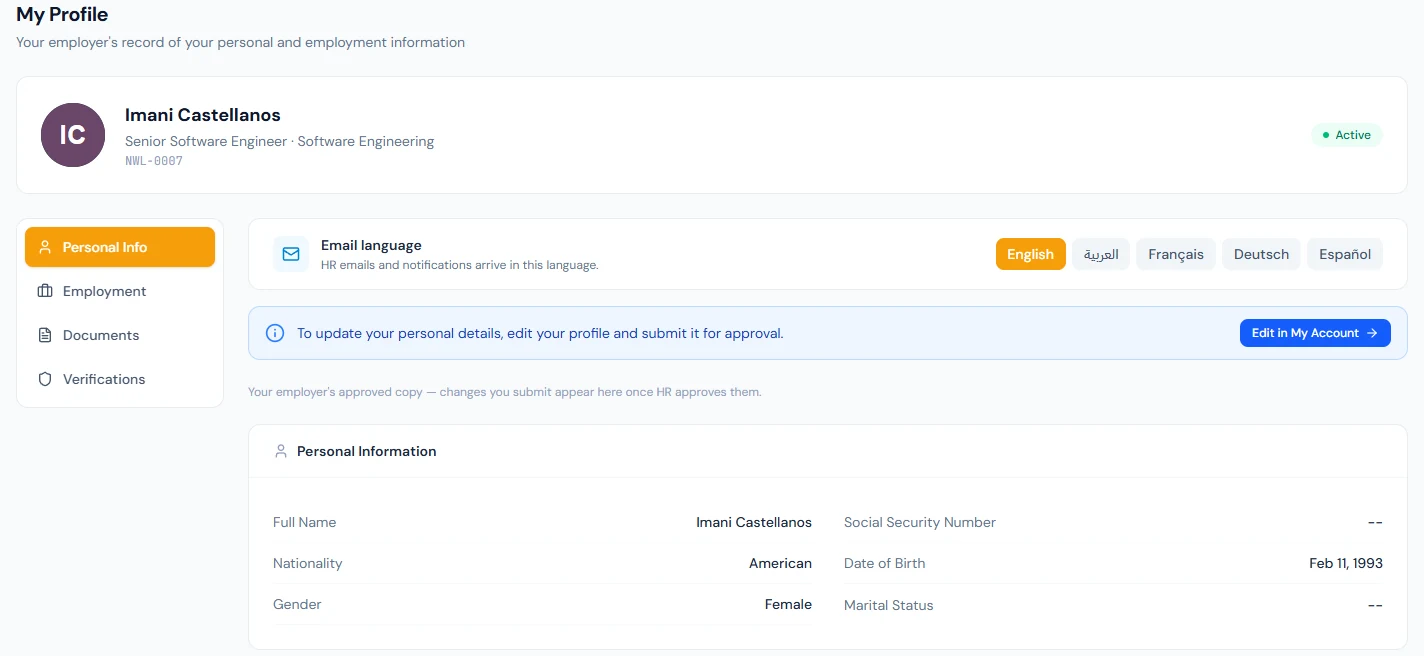
My Profile, "Your employer's record of your personal and employment information", shows the approved copy. Personal Info has personal details (fields such as Father's Name or a national tax number appear only where the country uses them), contact information, the emergency contact, addresses and the primary bank account "used for salary payments". A banner explains how to change it: "To update your personal details, edit your profile and submit it for approval", with Edit in My Account; the change appears here once HR approves it (Chapter 21). Employment shows the employee code, department, designation, branch, employment type, joining date and reporting manager, "the employer's record".
The photo. The photo, or the initials, sits at the top of My Profile, with Add a photo or Change photo under it, unless the workspace keeps photos to HR, in which case the page says "To change your photo, ask HR." Choosing one (on a phone, Take photo uses the front camera) opens "Your photo": drag and zoom the face into the dashed oval, Rotate if it is sideways, and check the previews. JPG, PNG, WebP or GIF, up to 10 MB; an iPhone HEIC file is refused with a note to pick the photo from the Photos app or save it as a JPG. With HR review on (the usual setting) the button reads Send to HR for review, and "Your new photo is waiting for HR approval." shows with Cancel until HR decides; a rejection shows "HR didn't approve your last photo." with HR's note and Upload another photo. Without review, the photo changes at once. The photo also shows in the top bar. It belongs to this workspace's record, not to My Account.
The Email language card ("HR emails and notifications arrive in this language") sets the language of the person's emails, separately from the language of the screens. When someone changes the screen language, a one-time banner offers to change the email language too; the card is the permanent place for it.
85.2 Uploading documents
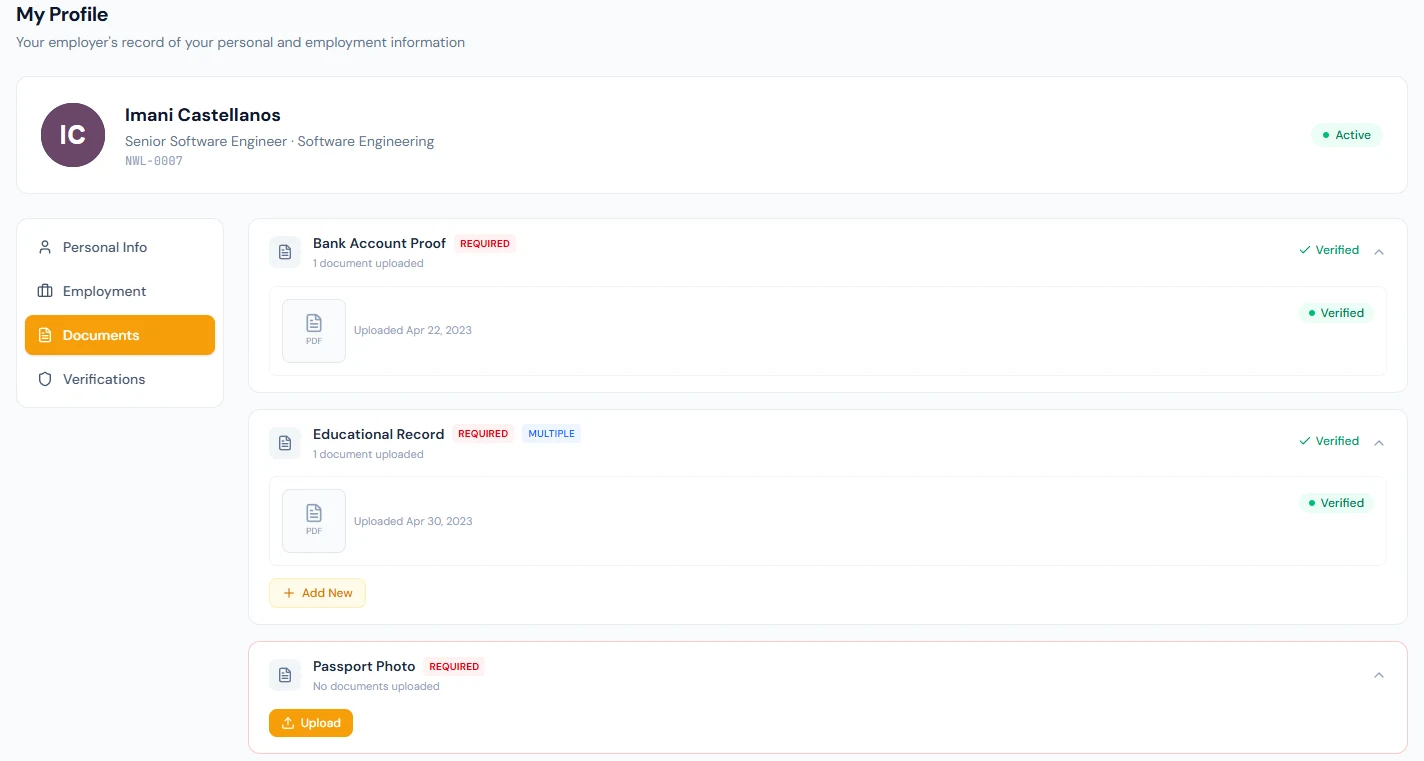
The Documents tab of the profile lists the person's uploads by document type with their status (My Documents shows the same list, and its Upload Document button leads to this tab), and is where a file is uploaded against each required type. HR reviews each upload, verifying or rejecting it with a reason (Chapter 22). Required documents that are missing appear as a dashboard banner, "Required Documents Missing", with the list.
85.3 Verifications and the verification gate
The Verifications tab shows the address verification: Request Verification, then "Enter the 6-digit code from the verification letter sent to your address", with the days remaining and three attempts. Where the workspace requires verification before using the portal, the person is taken to Complete your identity verification ("please verify the details below to access the portal"), with a card for each item and a count, "2 of 3 verified": Your mobile number ("We'll text you a 6-digit code"), SOS / Emergency contact (the code goes to the contact, who shares it), and the address, by letter. Too many wrong codes lock that item for a while; HR can help from the admin side (Chapter 23). Once everything is verified, the portal opens.
85.4 Reading and accepting the contract
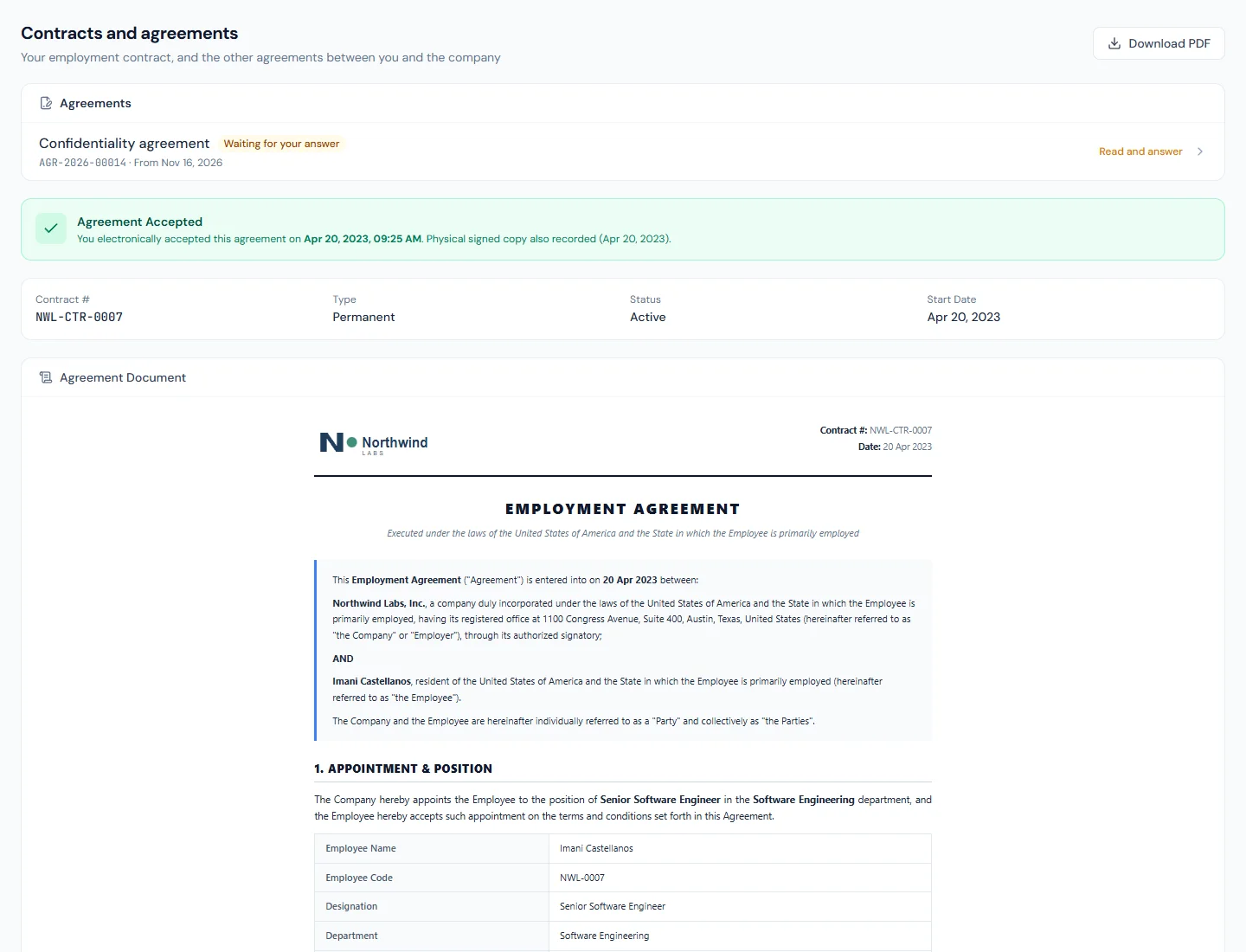
Contracts and agreements, "Your employment contract, and the other agreements between you and the company", shows the employment agreement with its number. Until it is accepted, the employee must scroll to the end ("Scroll to bottom to enable acceptance"), tick "I have read, understood, and agree to be legally bound…", and click Accept & Continue. The acceptance is recorded with the date, time, IP address and device, and the page then shows Agreement Accepted with when; where the workspace's country has an electronic-signature law, the page names it. Download PDF gives a copy at any time. If HR also records a physically signed copy, the page says so. Accepting is what activates a new employee (Chapter 18).
Above the contract, the same page lists the person's other agreements (confidentiality, a vehicle, equipment, a loan), the ones waiting for an answer first. Each opens on its own page, where it is read to the end and then accepted by typing the person's full name, or declined with a reason (Chapter 31A). Accepting one of these changes nothing but that agreement.
85.5 Letters and letter requests
Letters has Issued Letters, every letter issued to the person with its reference and whether it was emailed, to download, and My Requests, with Request a Letter for an experience or salary certificate, an appointment or offer letter, with the purpose, who it is addressed to and notes. A rejected request shows the reason; an issued one shows the letter's reference (Chapter 76).

85.6 ID card, email signature and business card
Once the workspace has unlocked Brand Studio, three more pages sit under Me.
My ID Card shows the card as HR issued it, front and back ("No ID card yet" until one is issued), and Card details: its state (Active, Expired, Replaced or Revoked), Card number, Issued, Valid until, Printing ("Waiting to be printed" or the date it was printed) and Handed back once HR records it. A notice says when the card has expired, expires within 30 days, was replaced or cancelled, or no longer matches the person's name, designation, department or photo. Request a replacement asks for a reason (Lost, Damaged, My details changed or Something else) and an optional Note for HR; while it waits the page shows "Requested on …" with Withdraw request, and the outcome appears under Earlier requests: Done, Declined with HR's note, or Withdrawn.
My Email Signature shows the signature built from the brand kit and the person's details, with Copy signature, Copy as plain text and Download .htm, and setup steps for Gmail, Outlook on the web, the new Outlook, Apple Mail and iPhone Mail. A pasted signature doesn't update itself: after a change of title or phone, copy it again.
My Business Card previews the card with the person's details as HR holds them, and Order business cards asks HR for How many (50, 100, 250 or 500) with an optional note: Request 100 cards. The order then shows as placed, and as printed with the date. The employee is emailed when the card or the business cards are ready to collect.
When an employee says their card "doesn't scan as valid", check its state here with them: expired, replaced and revoked cards no longer verify, and neither does anyone's card while they are suspended (Chapter 81).
85.7 The assistant
The AI assistant is on every paid plan, so Imani's portal has Assistant under Me. An Assistant button at the bottom corner of every portal page opens the same chat in a panel (Ctrl J, ⌘J on a Mac). Chapter 98 covers it in full. What matters when you support an employee:
- It sees what they see. It reads their own records (leave, attendance, holidays, payslips, loans, expense claims, assets, letters, contract, appraisals, tasks and reports) the way the pages do, as them, and for a manager what their team pages show. It never shows identity numbers, bank details, home addresses or personal phone numbers, not even their own.
- Requests wait for them. Asked to apply for leave, fix a day's attendance, claim overtime or an expense, apply for a loan or request a letter, it prepares a card with what the server worked out (for leave: the days counted, the balance before and after, and whether a document is needed). Nothing is sent until they press Confirm; Cancel drops it, and a card left alone expires after ten minutes. The chat takes no attachments, so a leave that needs a document goes through Apply Leave (Chapter 98).
- Their language, and the guides. It answers in the language they write in, and answers "how do I…" questions about the portal from the employee guide, with links to the sections it used.
- Credits. The line under the message box shows the AI credits they have used this month and their limit, which caps their share of the workspace's credits. When they reach it, or the workspace runs out, the assistant says so (Chapter 98).
- Switched off. If HR switched the assistant off on their record (Chapter 16), they have no button and the page says: "The assistant is not switched on for you. Ask an admin to turn it on in your employee record."
- Conversations are theirs alone. HR cannot read them, and they are deleted after 90 days unless the platform sets another period.
85.8 Skills and résumé
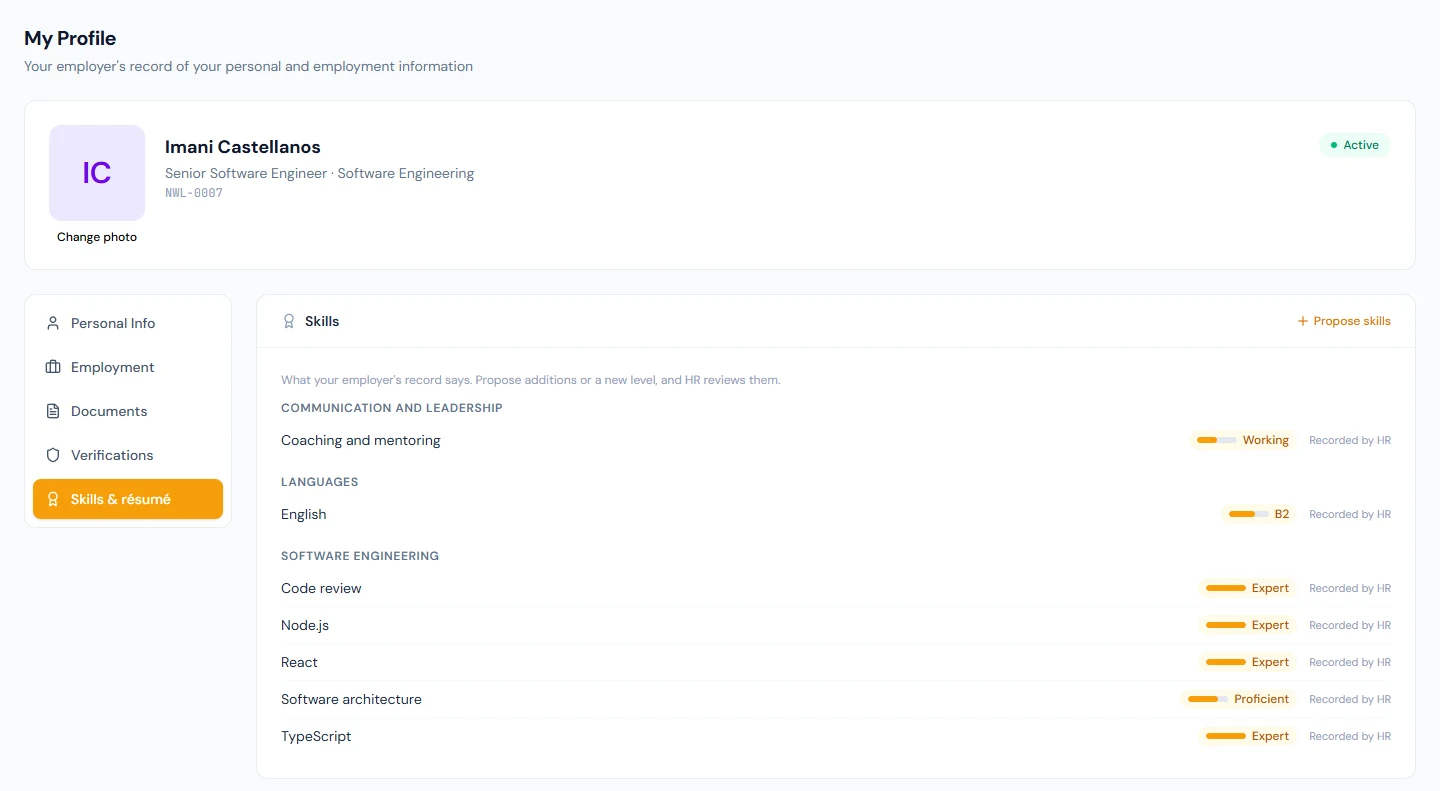
With skills management on, My Profile has a fifth tab, Skills & résumé. Imani sees what Northwind's record says she can do, each skill with its level and who recorded it; Against the role, her record beside what a Senior Software Engineer requires; and her Résumé. She cannot write to any of it. Propose skills picks each skill from Northwind's library with the level she holds and, for a certificate, when she got it and when it lapses; Propose résumé entries builds a list of experience, education and certification entries and sends them together. One proposal of each kind can wait at a time, which is why the button greys out while one is pending. Your proposals shows each as waiting, approved or returned with HR's note. HR reviews them on Profile Approvals or the Skills page; an approved item lands on the record marked self-reported. Thirty days before a certification on her record lapses she is emailed and told in the bell, and she proposes the new date once she has renewed.
85.9 Where I work
Where I work, under Me, is where Imani tells her colleagues where to find her. The top card is today, coloured by the place: the head office in blue, Home in green, a client site in amber, and a line underneath saying why: Your usual place, From your weekly pattern, or Set for this day. Change opens a picker of the workspace's locations for today. She chooses a place, types a note if the day needs one ("at the client until 3pm"), and presses Save: the place and the note are saved together. Choosing a place only selects it, and Save stays unavailable until one is chosen. Below it, The next seven days is one tile per day with the same picker a tap away, so Thursday's dentist is set on Monday. A day she has set herself is tinted and labelled Set for this day. Opening it again shows its place and its note, so either can be changed and saved, and Back to my usual place for this day removes it.
My usual week is her pattern: seven selects reading Same as default until she chooses otherwise, and Save writes only the days that differ. The default itself, the head office, is HR's to set on her profile (Chapter 19); if none is set the page says so and asks her to pick a place per day. The right-hand card, Your team today, is her department's picture for the day: one bar per place with the faces, then anyone on leave and anyone with nothing set. The portal dashboard carries the same card with her own place on top. HR sees the whole workspace on the admin dashboard, and the list of places comes from Company Setup › Work Locations.
What happens next
- Chapter 86 covers the Time group: attendance, field visits, leave and holidays.
What the employee sees
This chapter is what the employee sees.
Common mistakes
- Telling employees to edit their profile on the profile page. Changes go through My Account and HR's approval.
- Confusing screen and email language. They are set separately.
- Expecting phone verification without an SMS provider. It stays off until one exists (Chapter 80).
- A contract accepted without being read. The scroll requirement is there for a reason; do not work around it.
- Sending employees to HR for a copy of their letter. It is in Letters to download.
- Telling employees their mail signature will update. It is a copy; they paste it again after a change.
- Telling an employee the assistant applied their leave. It only prepares a card; nothing is sent until they press Confirm.
- Setting a day on Where I work to say you are off. It is where you work, not whether; leave is applied for on My Leaves, and an approved day shows as On leave to the team whatever the page says.
Practice
Use your own trial workspace, not a customer's.
- As a test employee, propose a phone change from My Account; as HR, approve it and see it on My Profile.
- Switch the email language and send yourself a test email from the admin side to check it.
- Upload a required document and verify it as HR.
- Accept a test contract and download the accepted PDF.
- Ask the assistant for your leave balance, have it prepare a leave application, read the card, and press Cancel.
- On Where I work, open tomorrow, choose Home, type a note and press Save. See it tinted in the week, then clear it with Back to my usual place for this day.
Quiz
1. How does an employee change their personal details?
They edit their profile in My Account and submit it; HR approves it into the employer's copy.
2. What does the Email language card set?
The language of the person's HR emails and notifications, separately from the screen language.
3. Which verifications can be required before the portal opens?
The mobile number, the emergency contact and the address.
4. What does accepting the contract record?
The date, time, IP address and device of the acceptance.
5. Where does an employee find letters issued to them?
Under Letters, Issued Letters, to download.
6. Imani wants to add a skill at level Expert. What does she do, and who can change her record?
Propose it from the Skills & résumé tab, with the level and any certification dates. Only HR writes the record: approving the proposal puts the skill on it as self-reported, returning it sends it back with a note, and until then no second skills proposal can be sent.
7. Imani sets Thursday to Home from Where I work. Who sees it, and what does she need HR for?
Her department sees it on Your team today, and HR sees it on Who is where today and on her profile's Work location card. She can set her own days and her usual week; only the default place is HR's to set.