Chapter 95 — The integrations hub
No HR system works alone. Punches come from a fingerprint terminal, salaries leave through a bank file, codes go out by SMS, engineering evidence comes from the code host, the team hears about leave in its chat channel, and the accountant wants each payroll in the books. Each connection was covered where it is used; this chapter puts them on one map, so you know what can be connected, where to set it up, what flows through it, and what is not yours to set up at all.
What this chapter covers
- 95.1 The Integrations page
- 95.2 Chat channels: Slack, Microsoft Teams and Mattermost
- 95.3 Team-leave calendars: Google Calendar and Outlook Calendar
- 95.4 Payroll journals: QuickBooks Online, Xero and Zoho Books
- 95.5 Connections that live on their own pages
- 95.6 Services the platform operator runs
- 95.7 Looking after connections
The concept
Every integration is a trade: less typing and fewer errors, in exchange for a dependency and a credential to look after. Three questions decide whether one is worth it: what data flows and in which direction, who in your company owns the outside account, and what happens when the connection breaks (an expired password, a renamed account, a revoked token). An integration nobody owns becomes the silent cause of "missing" data months later.
A fourth question matters for anything that posts out of the HR system: who will read it there. A chat channel and a shared calendar are open rooms. What Operentra sends to them is deliberately thin — who and when, never why.
How Operentra handles it
- Settings › Integrations ("Connect external services. Credentials are stored encrypted in the database.") holds a card per service, each with its state. Four cards are on every workspace:
| Card | What it connects | Chapter |
|---|---|---|
| SMS Providers | Gateways that send verification codes and SMS notices | 80 |
| GitHub | Pull-request reviews and merges as performance evidence | 74 |
| WHMCS | Support-ticket response and quality as performance evidence | 74 |
| Identity Reconciliation | Matching GitHub and WHMCS accounts to employees | 74 |
- Eight more cards appear in a workspace that has the Integrations feature, which comes with the Enterprise plan and the free trial (Appendix F). They share one layer, so they look and behave alike:
| Card | What flows | Direction | Section |
|---|---|---|---|
| Slack, Microsoft Teams, Mattermost, Google Chat | One line per HR event, into a channel | out | 95.2 |
| Google Calendar, Outlook Calendar | Approved leave, as all-day entries on a shared calendar | out | 95.3 |
| QuickBooks Online, Xero, Zoho Books | One journal per locked payroll run | out | 95.4 |
- States on a card: Configured (connected and working), Not configured, Needs attention (three deliveries in a row failed because the credential no longer works; nothing more is sent until a test succeeds), Reconnect needed (the outside service revoked the access, your settings are kept), and Available (the feature is on, but the operator has not yet registered the provider's app for this installation — the calendars and ledgers need one; chat does not).
- Each connection page has the same parts: how to connect, Test connection and Disconnect, a tick list of Events sent to this integration, the connection's own settings, and an Activity list of what went out lately with a Try again on anything that failed.
- Elsewhere in the admin: biometric terminals, bank payment-file formats, the custom domain, and API keys and webhooks.
- Run by the platform operator: the email server, AI, the public holiday calendar source, file storage, and the Google, Microsoft, Intuit, Xero and Zoho apps the calendars, ledgers and sign-in run on — the same for every workspace.
- Who:
company.settings(Super Admin, HR Manager) opens the page and every connection; GitHub, WHMCS and identities need the plan's performance feature; the ledgers need a plan with payroll. - The same feature also puts Continue with Google / Microsoft on the sign-in page and a Calendar tab under My Account; those are personal, so they are in Chapter 6.
Walkthrough
Settings › Integrations, as the Super Admin.
95.1 The Integrations page
Each card opens its own page. SMS Providers is where you add a gateway account, test it and set the default that sends; with none, the phone and emergency-contact verifications stay off (Chapter 80). GitHub connects with an access token (and optionally an organisation) and the repositories whose reviews count; WHMCS connects a helpdesk with API credentials; Identity Reconciliation links each GitHub login or WHMCS agent to an employee, and activity from accounts not yet linked is held until they are (Chapter 74).
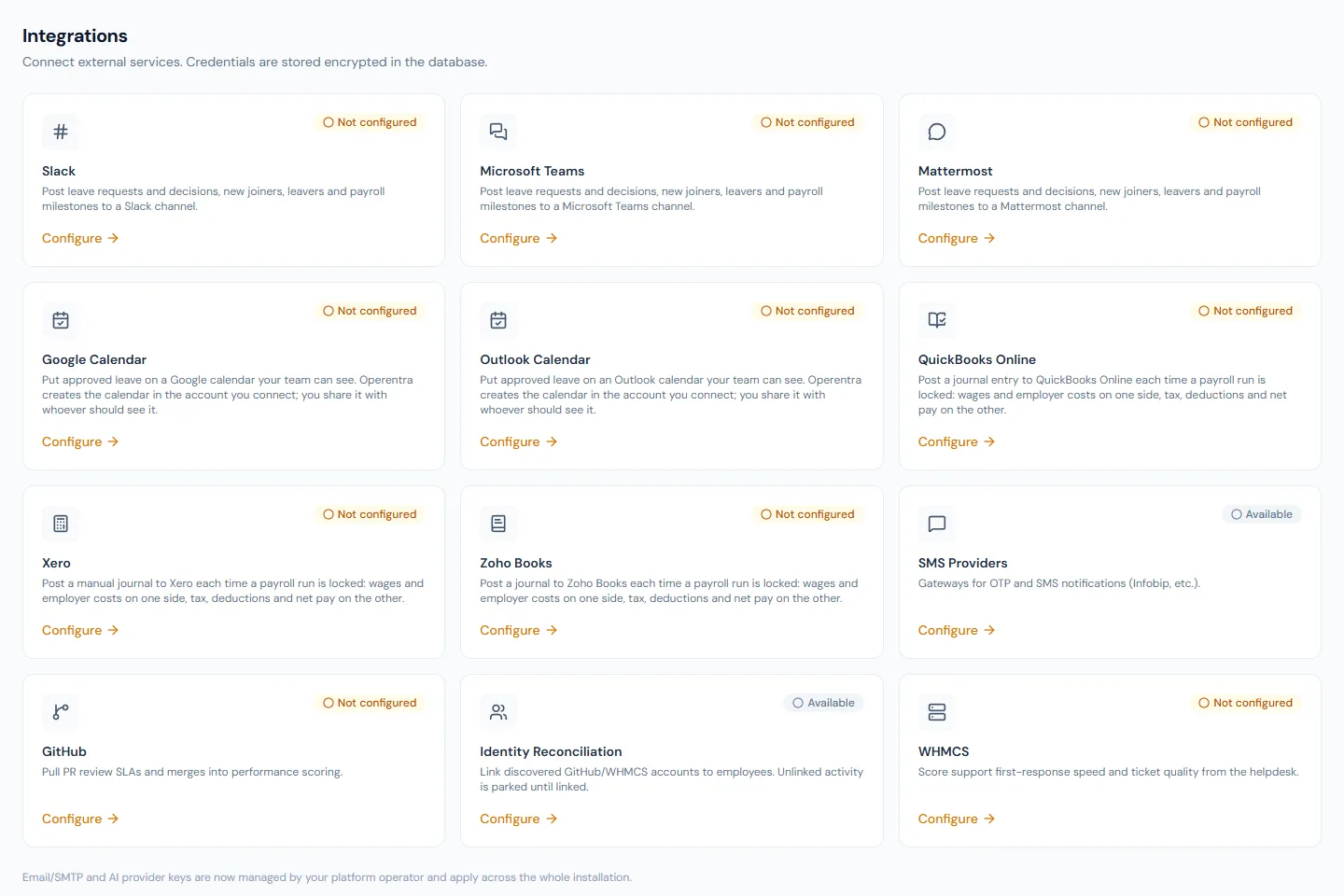
A card reads Configured only once its connection is saved and switched on. Keys, passwords and webhook links are stored encrypted and shown back only as a mask.
95.2 Chat channels: Slack, Microsoft Teams and Mattermost
Slack, Microsoft Teams, Mattermost and Google Chat all work by incoming webhook: the chat product gives you a link for one channel (a space, in Google Chat), you paste it, and Operentra posts there. Nothing is registered with the chat provider, so these work on any installation.
- Get the link in the chat product. Slack: add the Incoming
Webhooks app to the channel and copy the URL. Teams: next to the
channel, More options (…) → Workflows → "Send webhook alerts to a
channel", save, copy the link (the retired Office 365 connector links
are refused; only this workflow template works, because the other two
expect a signed-in person). Mattermost: main menu → Integrations →
Incoming Webhooks → Add Incoming Webhook, pick the channel, copy the
URL (it carries your own server's address). Google Chat: open the
space, click its name → Apps & integrations → Webhooks → Add
webhooks, name it, save, copy the URL (it is always on
chat.googleapis.com, and nothing else is accepted). - On the card's page paste the link, optionally note the channel's name for your own reference, and press Connect & test. One line is posted to prove the link works. The link is a credential: it is stored encrypted and never shown back.
- Untick, under Events sent to this integration, whatever does not belong in that channel, and Save. Every event is ticked to begin with.
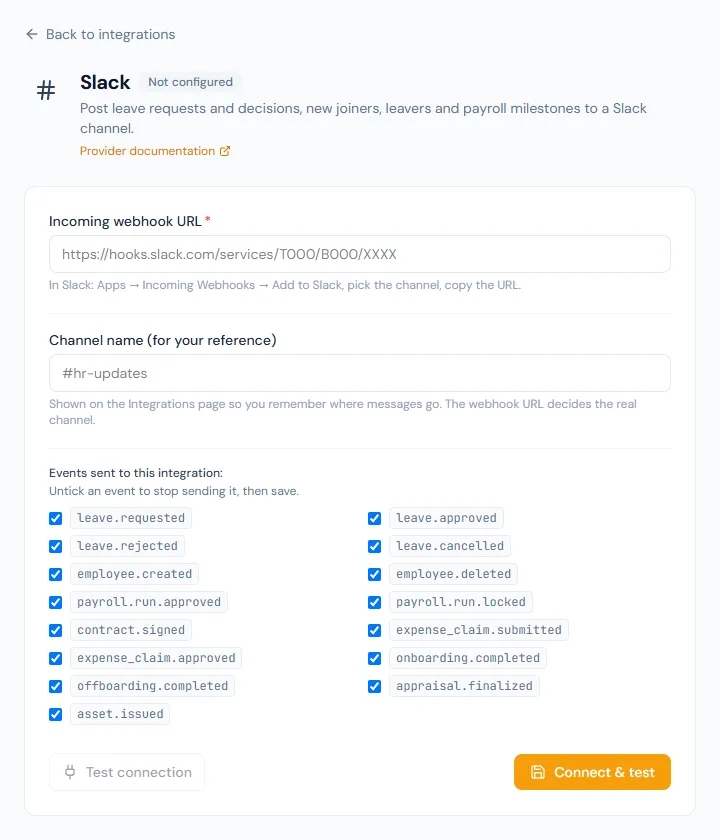
| Area | A line is posted when |
|---|---|
| Leave | leave is requested, approved, rejected or cancelled |
| People | a team member is added, an employee record is removed, onboarding or offboarding is completed |
| Payroll | a run is approved or locked (plans with payroll) |
| Contracts | a contract is signed |
| Expenses | a claim is submitted or approved |
| Performance | an appraisal is finalised (plans with performance) |
| Assets | an asset is issued |
Each line names the person and what happened, with the dates for leave — and nothing else. The reason for a request or a rejection, an appraisal's rating, what a claim was for and how much it was worth never leave the app, where permissions decide who reads them. The lines are written in the workspace's Default email language (Chapter 13), because a channel is shared and gets one language.
A burst (a bulk import) is paced to what the chat product accepts. If the link itself stops working — the webhook was deleted, the channel archived, the workflow switched off — three refusals in a row turn the card to Needs attention and nothing more is sent; fix the link and press Test connection, and deliveries resume. Disconnect deletes the link.
95.3 Team-leave calendars: Google Calendar and Outlook Calendar
Approved leave, on a calendar the team already looks at.
- Press Connect and sign in with the account that should hold the calendar. Choose a shared HR account, not a personal one: the calendar lives in that account. Google asks for permission to create calendars of the app's own; Microsoft asks for calendar access.
- Operentra creates a calendar named Team leave: your workspace in that account, right away, and never touches any other calendar there.
- Share that calendar with the people who should see it, from Google Calendar or Outlook, the way you share any calendar.
From then on, approving a leave request adds an all-day entry for its dates, and cancelling the leave removes it. Pending requests are not shown; half days are marked; the entries show as free, so nobody's availability is blocked by someone else's leave. Entries follow the workspace's Default email language.
What an entry shows is the page's one setting. Name only (the default) writes "Sara Khan: on leave"; Name and leave type writes "Sara Khan: Annual leave". The default keeps sick leave and the like out of a calendar many people can read.
The Activity list shows each entry made or removed, and any that could not be, with the reason and Try again; a passing failure (the calendar service was down) is retried on its own for up to a day. If someone deletes the calendar in Google or Outlook, the next approval creates a fresh one — share it again. Disconnect stops the entries and forgets the account but leaves the calendar where it is; reconnecting with the same account picks it up.
95.4 Payroll journals: QuickBooks Online, Xero and Zoho Books
One balanced journal per locked payroll run, in your own books. The workspace needs a plan with payroll, and the run must be in the ledger's base currency.
- Press Connect and choose the QuickBooks company or Xero organisation to post to (for Xero, connect as an adviser or a standard user with reporting rights). Zoho Books connects the whole Zoho account: with one organisation it is chosen for you; with several, pick the one to post to under Organisation on the connection page and Save before the account lists fill.
- Map the journal's lines to accounts in that ledger's chart of accounts and Save. Three are required — Wages expense, Net pay (a wages-payable or payroll-clearing account, which your bank payment then clears) and Deductions — and five optional ones refine them: employer contributions expense, expense reimbursements, income tax payable, contributions payable, employee loans. Each falls back on the required account above it when left empty.
- For Xero and Zoho Books, choose whether journals arrive as a Draft (the default: someone reviews and posts or publishes it in the ledger) or go straight in (Posted in Xero, Published in Zoho Books).
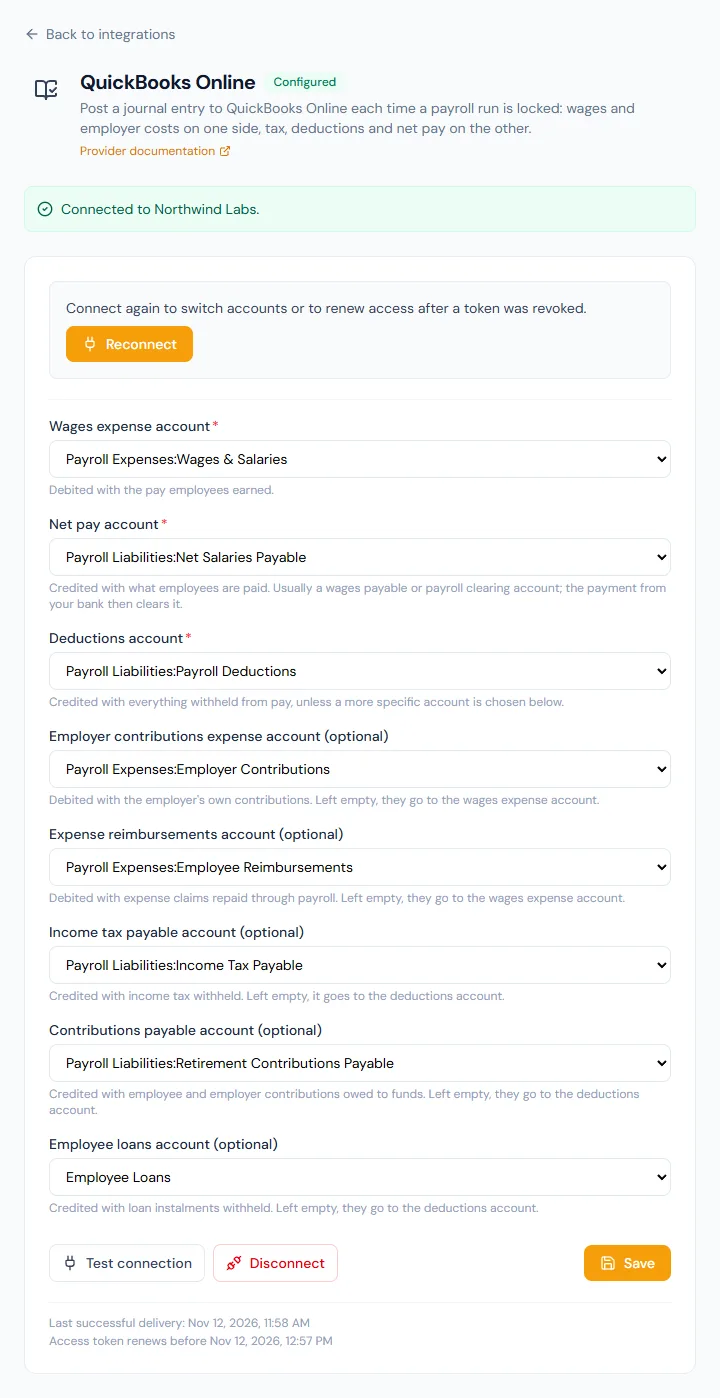
When a run is locked (Chapter 55), one journal dated the last day of the payroll month is posted: wages, employer contributions and reimbursements on the debit side; tax, contributions, loans, other deductions and net pay on the credit side. It is a summary — the ledger never sees a line per person — and days docked for absence are not a cost, so they do not appear.
The Activity list shows each run's journal, with a link to open it in the ledger, or why it was not posted. Three reasons are the app's own: the accounts are not chosen yet (Waiting for you — it goes out when you save them); the workspace pays in one currency and the ledger keeps its books in another (nothing is posted); the run's figures do not add up to its net pay (nothing is posted; enter that journal by hand). Anything else is the ledger's own message — an archived account, a locked period — and Try again resends after you fix it. A journal that went through is never posted twice; runs locked before the ledger was connected are not posted at all.
95.5 Connections that live on their own pages
| Connection | Where | Chapter |
|---|---|---|
| Biometric terminals (fingerprint and face) | Attendance › Biometric Devices | 40 |
| Bank payment-file formats | Company › Bank Accounts, per account | 11, 58 |
| Your own web address | Settings › Workspace, Custom domain | 13 |
| Careers site | Recruitment | 27 |
| API keys and webhooks | Settings › API Keys, Webhooks | 96 |
| Team leave and Team schedule calendars (Google, Outlook) | Integrations › Google Calendar, Outlook Calendar | 35 |
| Sign in with Google or Microsoft; your calendar feed | The sign-in page; My Account › Calendar | 6 |
95.6 Services the platform operator runs
Some services are set once for the whole installation by the operator of your Operentra platform, not by each workspace: the mail server that sends every email, the AI model behind task weights, report checks and the AI assistant (Chapter 98), the source of public holiday suggestions, file storage, and the apps registered with Google, Microsoft, Intuit, Xero and Zoho that the calendars, the ledgers and sign-in run on (until the operator has registered one, its card reads Available). The Integrations page says so: "Email/SMTP and AI provider keys are now managed by your platform operator and apply across the whole installation." What each workspace controls is how it uses them: its sender name and reply-to (Chapter 13), which emails are switched on (Chapter 79), whether AI features are on (Chapter 75), which holiday suggestions to accept (Chapter 43), and who may use the AI assistant and how many AI credits each person may spend (Chapter 98). Only the assistant spends AI credits; the AI features of Chapter 75 do not.
95.7 Looking after connections
- Name an owner for every connection, and record which outside account and link it uses.
- Use an account created for Operentra (a dedicated GitHub token, a WHMCS API user, a shared HR mailbox for the team-leave calendar), not someone's personal login, so a leaver does not break it. A Teams workflow belongs to the person who made it: add a co-owner before they leave, and know that Teams switches off a workflow that has not fired for 90 days.
- When a token is about to expire, replace it on the card before it does. A card that turns to Needs attention tells you which link died; a Reconnect needed card means the outside service withdrew the access and wants you to sign in again.
- After any change, test (every connection page has Test connection; SMS has a test send) and check the result arrives: the line in the channel, the entry on the calendar, the journal in the ledger's Activity list, the evidence (Chapter 74) or the logs (Chapter 92).
- Read the Activity list after the first payroll lock and the first leave approval, not a month later.
What happens next
- Chapter 96 covers what Operentra does on its own: the scheduled jobs behind reminders, accruals and emails — and the relay that carries events to the connections above within seconds of them happening.
- Chapter 97 is for the connections you build yourself: API keys and webhooks that carry the same events to your own systems.
What the employee sees
The results: codes by SMS, punches from the terminal, performance points from GitHub or the helpdesk, a line in the team channel when their leave is approved, their leave on the shared calendar, nothing at all of the ledger. With the same feature on, they can also sign in with their Google or Microsoft account and subscribe their own calendar to their leave and holidays (Chapter 6).
Common mistakes
- Connecting with a personal account. When that person leaves, the connection breaks — and a team-leave calendar vanishes with their mailbox.
- Pointing the webhook at a wide channel with every event ticked. The whole company then learns who is leaving before HR has told the team. Choose the channel for its members, and untick what does not belong there.
- Leaving accounts unlinked in Identity Reconciliation. Their activity waits there and never reaches anyone's score.
- Locking the first payroll before the ledger accounts are chosen. The journal waits as Waiting for you; a run locked before the ledger was connected at all is never posted — enter it by hand.
- Looking for the email server on the Integrations page. It is the operator's; your part is the sender identity and the triggers.
- Turning on phone verification before an SMS provider works. Test the provider first.
Practice
Use your own trial workspace, not a customer's. The chat, calendar and ledger cards show during the trial and on the Enterprise plan; the first two steps work everywhere.
- Open Settings › Integrations and note each card's state.
- Write down, for your company, who would own each connection you plan to use and which account it would run under.
- If the chat cards are there: create an incoming webhook for a private test channel, connect it, and watch the test line arrive. Request and approve a leave; read the two lines, and notice what they do not say. Then untick everything but Leave and save.
- If a calendar card is there: connect it with a test account, approve a leave, open the Team leave calendar and find the entry; cancel the leave and watch it go. Switch the setting to Name and leave type and approve another.
- If a ledger card is there and your trial has payroll: connect a sandbox company, choose the three required accounts, lock a run and open the journal from the Activity list. Check that it balances and that no employee is named.
Quiz
1. Which four cards does every workspace's Integrations page hold, and what brings the other seven?
SMS Providers, GitHub, WHMCS and Identity Reconciliation. The chat, calendar and ledger cards appear when the workspace's plan has the Integrations feature (the Enterprise plan, and the free trial).
2. A leave request is rejected. What does the Slack line say about why?
Nothing. A line names the person and what happened (and the dates for leave); reasons, ratings and amounts stay in the app.
3. Which account should hold the team-leave calendar, and why?
A shared HR account. The calendar lives in the account that connected, so a personal account takes the calendar with it when that person leaves.
4. When is a payroll journal posted to QuickBooks, Xero or Zoho Books, and what does it contain?
When the run is locked: one balanced summary journal dated the last day of the payroll month — wages, employer contributions and reimbursements debited; tax, contributions, loans, other deductions and net pay credited. Never a line per person.
5. A card reads Needs attention. What happened, and what makes it work again?
Three deliveries in a row failed because the credential itself no longer works (a deleted webhook, an archived channel). Nothing more is sent until you fix the link and a Test connection succeeds.
6. Where do you connect a fingerprint terminal?
Attendance › Biometric Devices (Chapter 40), not the Integrations page.
7. Who sets up the email server, and the Google, Microsoft, Intuit, Xero and Zoho apps?
The platform operator, once for the whole installation; the workspace sets its sender identity, which emails are on, and connects its own accounts.