Letters & acknowledgments
HR letters and letter requests
Open Letters (/portal/letters). It has two tabs.
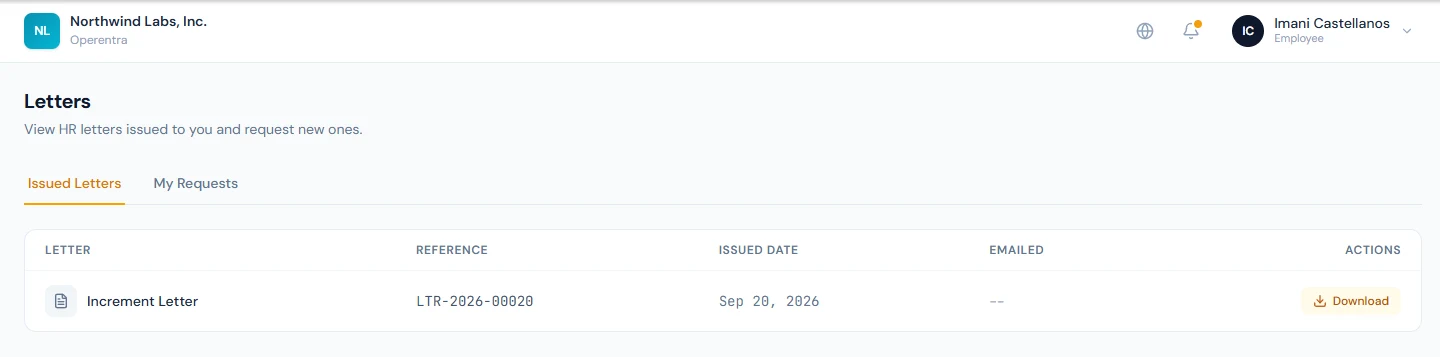
Issued Letters lists every HR letter already generated for you — appointment letters, increment letters, experience certificates, and so on — with its reference number, issue date, and whether it was emailed to you. Use Download to get the PDF.
My Requests is where you ask HR for a letter you need:
- Click Request a Letter.
- Pick a Letter Type and describe the Purpose (for example, "Bank loan application" or "Visa interview").
- Optionally set Addressed To (left blank it becomes "To Whom It May Concern") and add any Additional Notes.
- Click Submit Request.
Your request appears in the table with a status of Pending, Approved, Issued, Rejected, or Cancelled. If it is rejected you'll see the reason; once it is issued you'll see the reference number, and the finished letter also shows up under Issued Letters. You can cancel a request while it is still Pending.
Letters, salary slips, and tax certificates carry a QR code that anyone — a bank, an embassy — can scan to verify the document is genuine, without signing in.
Acknowledging documents
The portal asks you to confirm receipt of a few important documents:
-
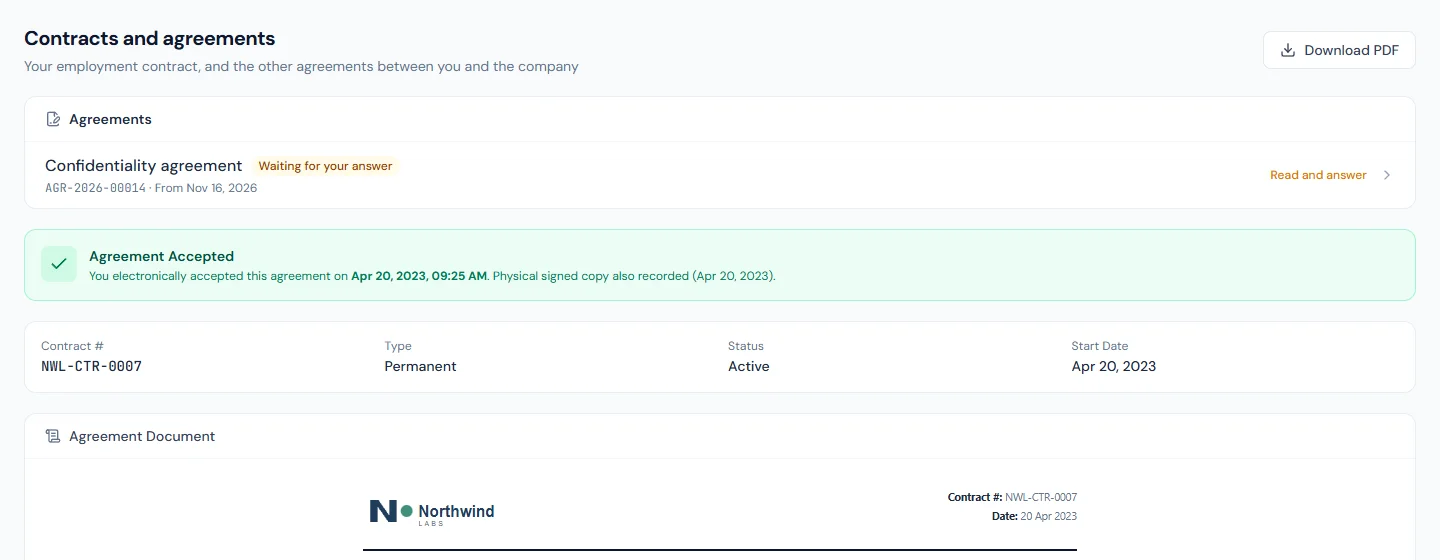
Employment agreement / contract — if your contract is waiting for your signature, the dashboard shows an "Employment Agreement Pending" banner. Open Contracts and agreements (
/portal/contract) to read it and accept it electronically. -
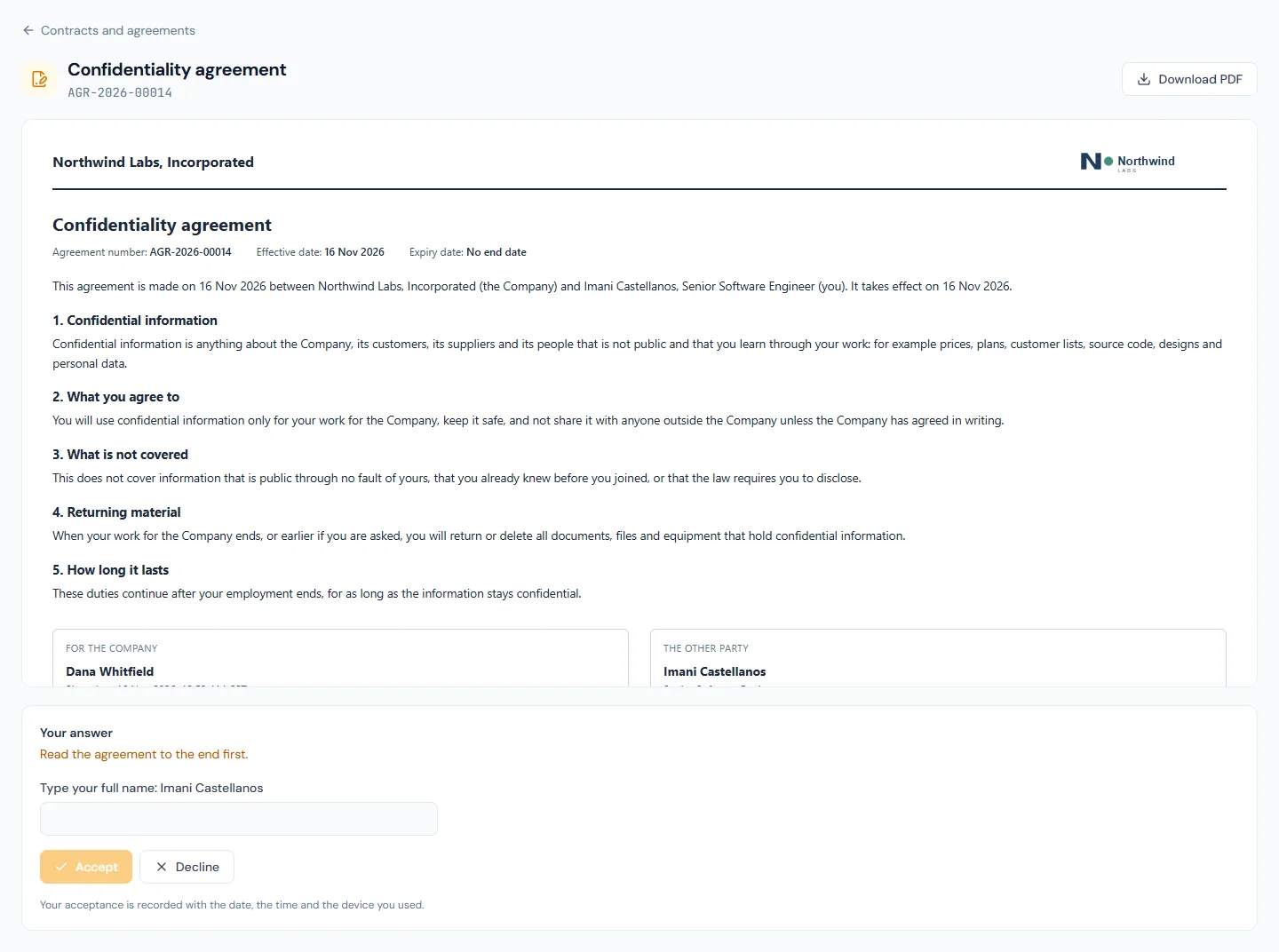
Agreements — the other agreements between you and the company, such as confidentiality, a company vehicle, equipment handed to you or the terms of a loan, are listed at the top of Contracts and agreements, the ones waiting for your answer first. You get an email when one is sent to you, and it shows on your Home under Needs your attention. Open it, read it to the end, then accept it by typing your full name as it appears on the agreement, or decline it and say why. If it is still waiting after three days you are reminded by email, and once more after seven. Once you have answered, it stays on the page for you to read and download as a PDF.
-
Salary slips — confirmed from My Salary as described in Payslips & tax documents; this releases your signed PDF slip.
-
Company documents — handbooks, policies and forms HR shares with you appear under Company → Company Documents (
/portal/company-documents), grouped by category. The ones that ask for an acknowledgement sit at the top until you open them and press I have read it; you get an email and a bell when one is published. A revised document is a new version and asks you again, so what you acknowledged is always the text you read. The search at the top of the page looks through the titles, the descriptions and the text inside PDF and Word files, and shows the passage where your words were found.
Acknowledgments are recorded with a timestamp (and, for your contract, an agreement and a salary slip, your IP address) so there is a clear record that you received the document.
My Documents
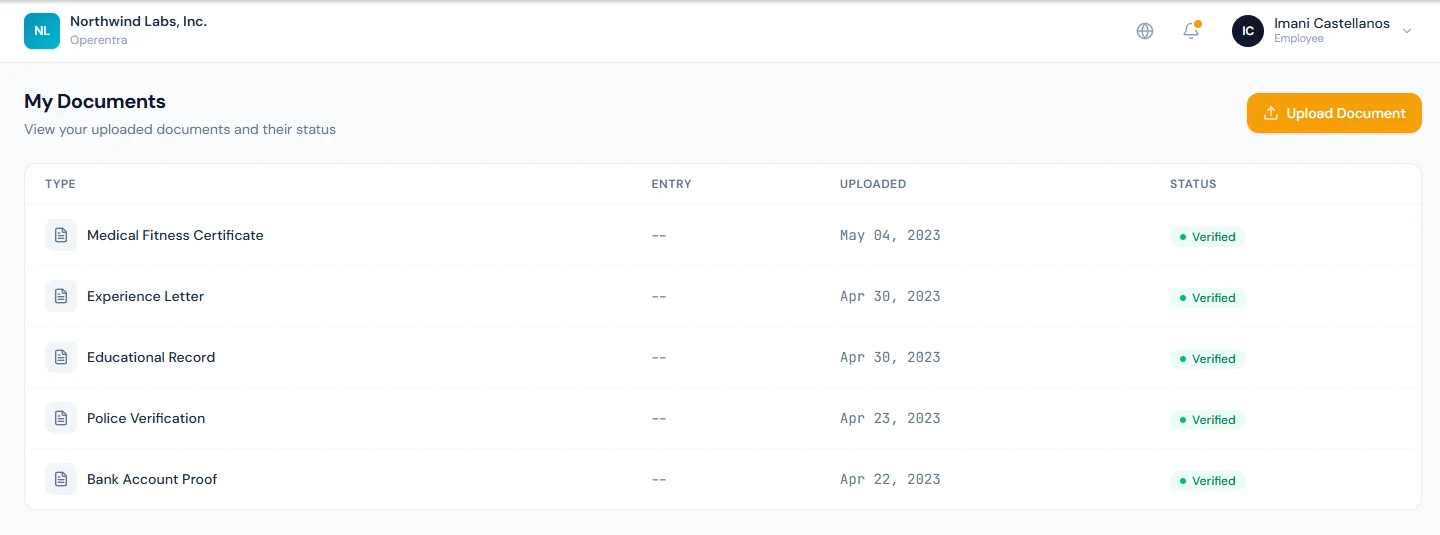
My Documents (/portal/documents) lists your own uploaded documents — such
as ID cards — with their status and expiry dates, and colours a document due to
expire within 30 days so you can renew it in good time; you are also emailed 60,
30 and 7 days before a document on file expires. When HR asks you for a
document, a Requested from you panel at the top names it, the due date and
the note HR left, with an Upload button; the request closes by itself once
you upload a document of that type, and you are reminded as the date nears. My Documents
itself is a status view — its Upload Document button takes you to
My Profile → Documents (/portal/profile?tab=documents), which is where
document uploads are actually submitted.