Dashboard
The dashboard at /portal greets you by name and gives you a one-glance
summary of your working life at the company.
Your company chooses which sections are on this page and in what order, so yours may not have all of the ones below, or may show them in a different order.
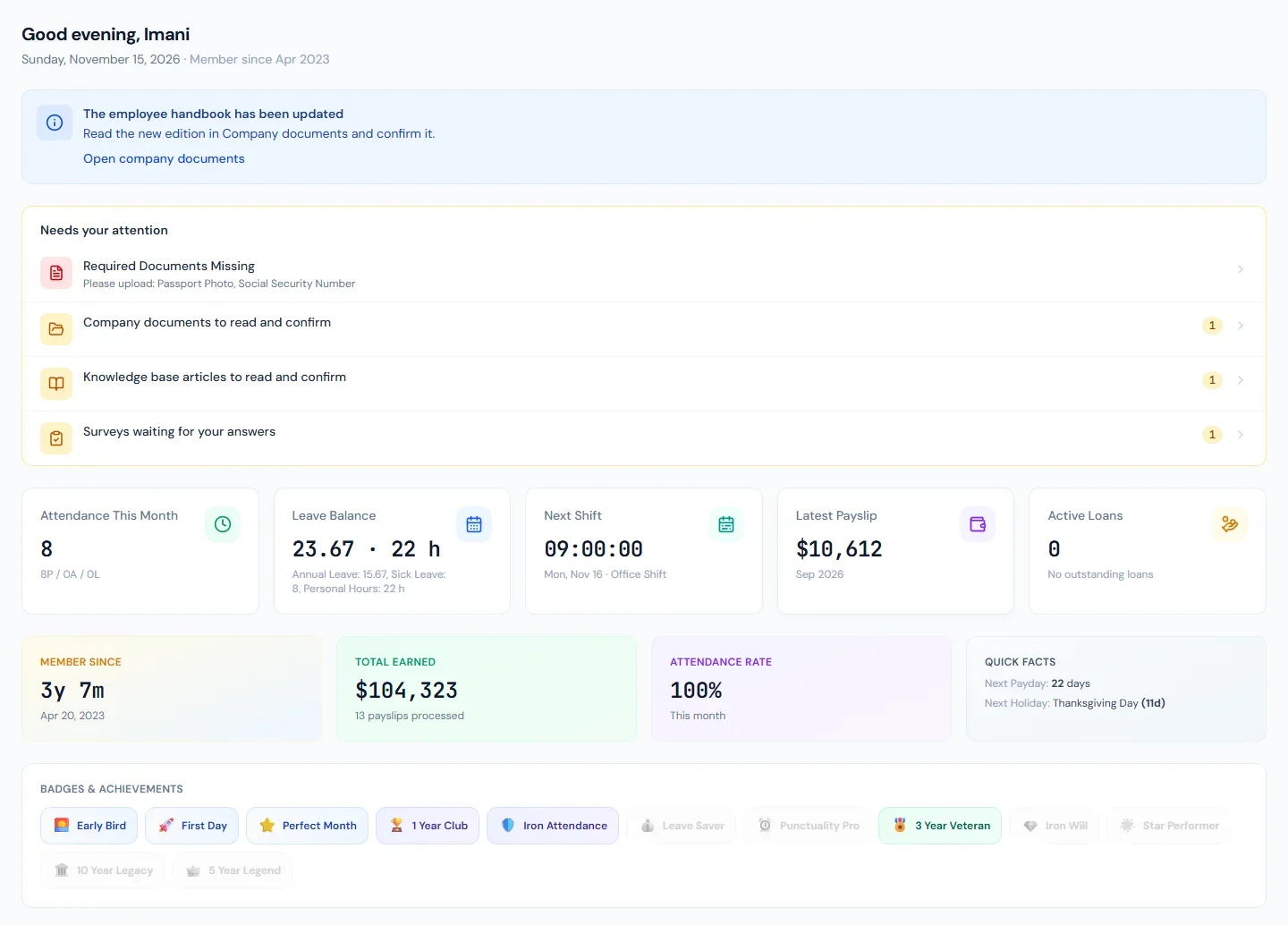
Needs your attention
When something is waiting on you, a Needs your attention list appears near the top. Each line opens the page that clears it:
- an employment agreement waiting for your signature;
- an address that needs verifying, with the days remaining;
- a required document that is missing;
- company documents and knowledge base articles to read and confirm;
- surveys waiting for your answers;
- courses to complete;
- checklist tasks assigned to you;
- requests of yours on which the team is waiting for your reply;
- requests waiting for your decision, if you approve other people's requests.
A number beside a line is how many are waiting. When nothing is, the list is not shown.
A notice from your company
Your company can put one notice at the top of the page, sometimes with a link. It appears and disappears on the dates your company sets.
Stat cards
The stat cards are each clickable and jump to the matching page:
- Attendance This Month — days present, with a P / A / L (present / absent / late) breakdown.
- Leave Balance — your total remaining leave across all types: what has accrued so far, as on My Leaves, not the whole year's allowance. Leave your employer counts in hours is totalled on its own and shown beside the days with an "h", never added to them.
- Latest Payslip — the net amount from your most recent salary slip.
- Active Loans — how many loans are open and the total still outstanding.
- Next Shift — on a workspace that rosters its people: the start time of your next published working day, with its date and shift name. Opens My schedule.
A journey strip shows how long you have been a member, total earnings to date, your attendance rate, and quick facts like your next payday and next holiday. You will also find your Pending Requests, Upcoming Holidays, and Recent Announcements.
If you moved here from another company in your group, your time with the company is counted from the day your service in the group began, not from the day you joined this one. Your work anniversary and your length-of-service badges follow that date too.
Quick links
If your company has pinned links here, Quick links shows the ones meant for you: tools, forms or shared folders. Some open in a new tab.
Events and recognition
Coming up shows the next three company events you are invited to, with your reply beside each, and Recognition shows the latest three notes of thanks across the company. See Events & recognition.
Celebrations and new joiners
Where your company has switched them on:
- Celebrations lists colleagues' birthdays and work anniversaries from today through the next six days. A birthday is shown as a day and a month only; nobody's age is shown.
- New joiners lists the people who joined in the last 30 days.
Your own birthday and work anniversary are shown to colleagues the same way. To stay out of the list, click Leave me out at the foot of the Celebrations card. Include me puts you back. It takes effect straight away and covers both dates.
Badges and achievements
If your workspace has badges enabled, a Badges & Achievements panel appears on the dashboard. Badges are earned automatically as you hit milestones; earned badges show in colour while ones you haven't unlocked yet appear greyed out. Hover a badge to see its description and what you earned it for.
Badges come in four rarities — common, rare, epic, and legendary — and recognise things like:
| Badge | Earned for |
|---|---|
| First Day | Accepting your employment agreement |
| Perfect Month | A full month of perfect attendance |
| Early Bird | A month with no late arrivals |
| Punctuality Pro | A sustained streak with no late arrivals |
| Leave Saver | Preserving leave balance over the year |
| Iron Attendance / Iron Will | Long streaks of perfect attendance |
| Star Performer | Receiving a promotion |
| 1 Year Club, 3 Year Veteran, 5 Year Legend, 10 Year Legacy | Reaching each service milestone |
Badges are a recognition feature only — they don't affect pay, leave, or performance scores.