Leave
View your balances and policies
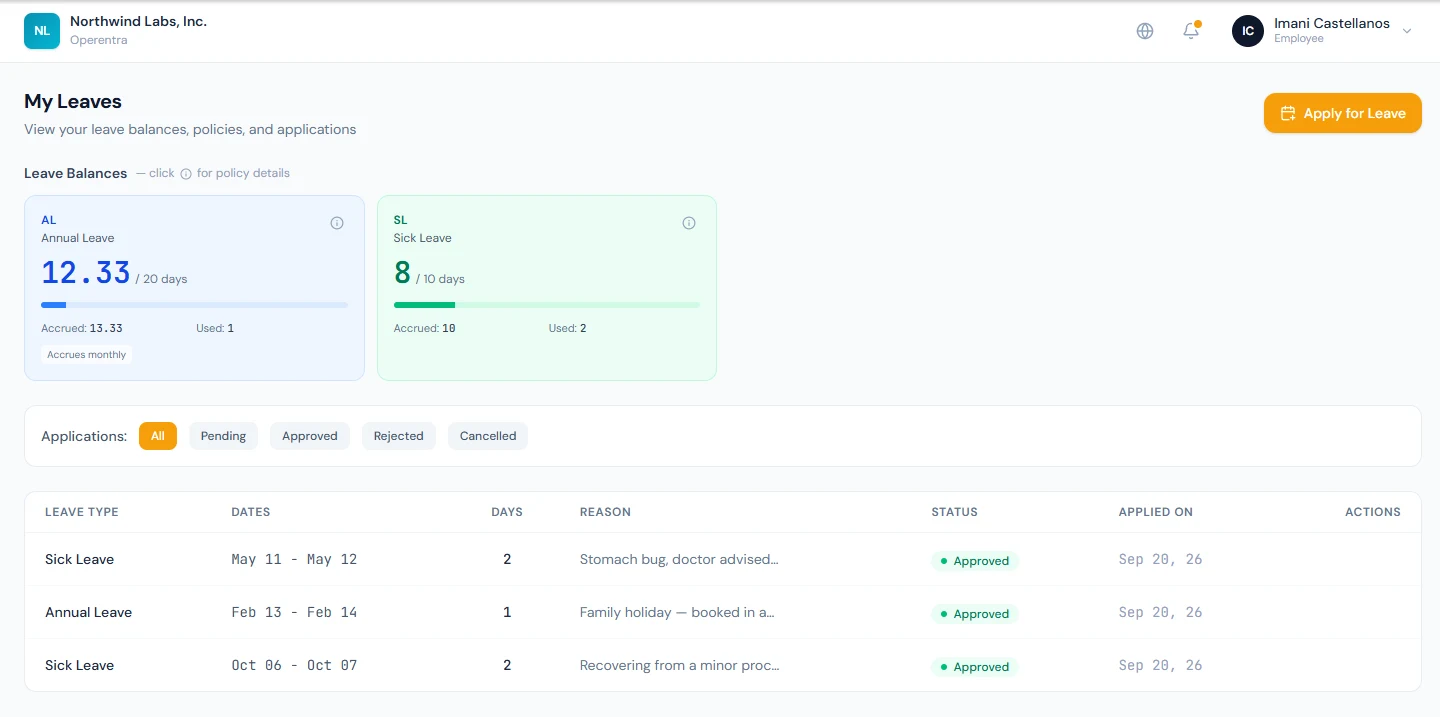
Open My Leaves (/portal/leaves). Each leave type is shown as a card with
your available balance, the annual quota, and how much you have accrued, used,
and carried forward. Click the small info icon on a card to open the
policy for that leave type — it explains the accrual method, eligibility,
carry-forward and encashment rules, any sandwich rule, and whether
documentation is required for longer leaves.
If your employer banks overtime instead of paying it, a Compensatory Off card holds the days your approved overtime became (the hours divided by your shift length to a tenth of a day, so four hours on an eight-hour shift is half a day). It grows the moment a request is approved, and you apply for it like any other leave. My Attendance shows the same figure beside the month's overtime hours.
Submit an application
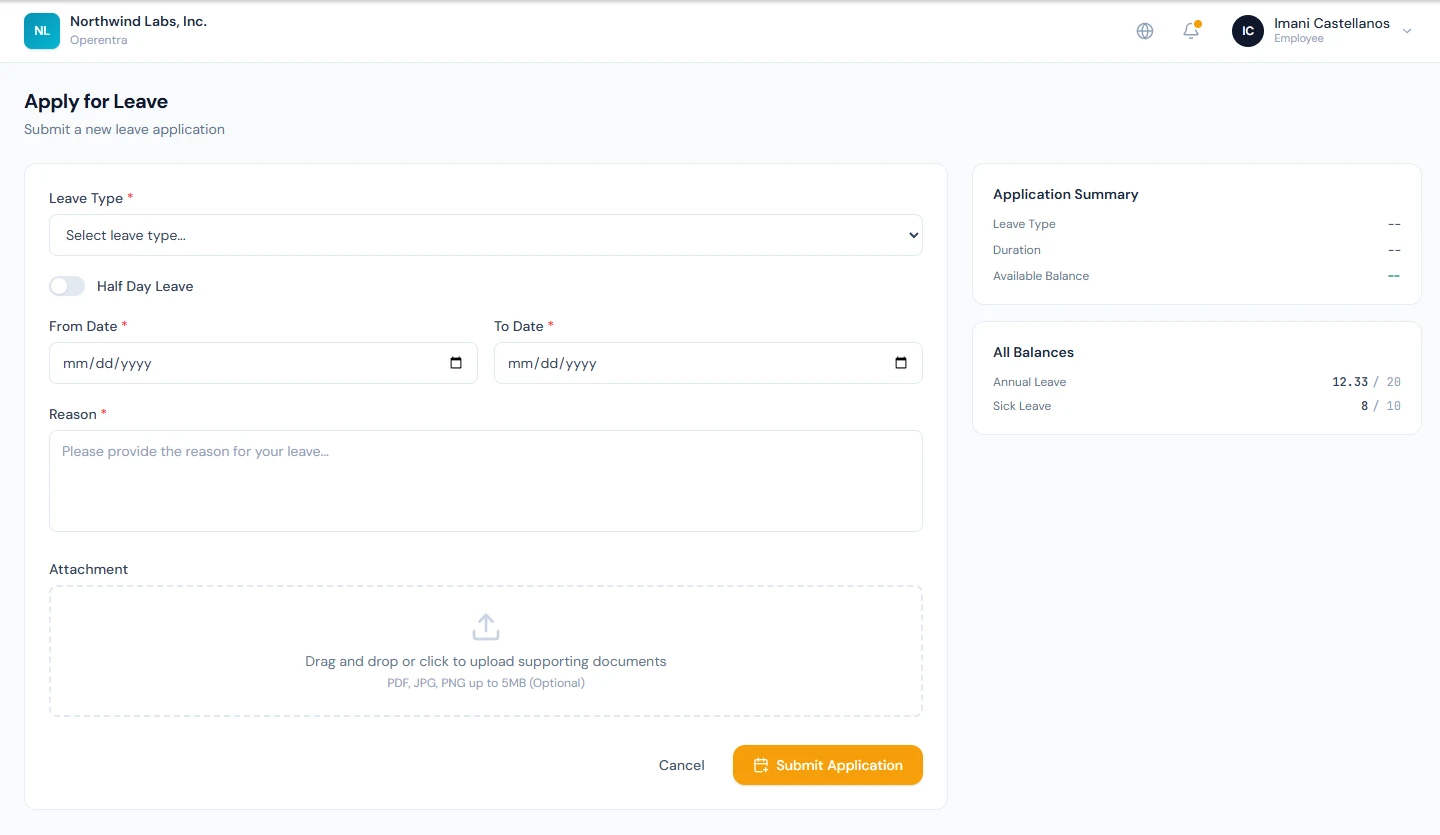
- Click Apply for Leave (from the dashboard, My Leaves, or the sidebar) to
open
/portal/leaves/apply. - Choose a Leave Type. The dropdown shows your current balance next to each type and marks any type you are not eligible for.
- Turn on Half Day Leave if you only need a morning or afternoon, then pick First Half or Second Half. Otherwise pick a From Date and To Date. A type taken in hours (its balance reads hours) asks for the date and the Hours instead, in half hours, within one day.
- Enter a Reason. You can optionally attach a supporting document (PDF, JPG, or PNG).
- The side panel shows a live Application Summary — duration and your available balance. If the request exceeds your balance you'll be warned that extra approval may be needed.
- Click Submit Application.
A yellow panel above the form lists any blackout periods ahead that apply to you: dates when leave is refused outright, or allowed but flagged to your approver with the reason. An application that falls in a refused period is turned down with that reason.
Ask for an allocation
If a leave type shows no balance (an "on request" type), or you need more of one you have, use Request allocation on My Leaves: the type, the days or hours, and why. The request goes to your manager and then to HR; once it is approved your balance grows and you apply as usual. The list under the button shows each request's state, and you can withdraw one that is still pending.
Track and cancel
Back on My Leaves, the applications table lists every request with its status — Pending, Approved, Rejected, or Cancelled — and lets you filter by status. You can cancel a request while it is still Pending, or cancel an Approved leave whose start date is still in the future.
Who decides your request is set by your workspace's approval flow: usually your reporting manager or HR, sometimes both in turn for longer leave. The My requests tab of Approvals shows which step a pending application is waiting at and every decision taken on it.